
You do not need a newsletter platform to send one email that looks considered. A project milestone, a client update, an invitation, or a thank-you can deserve more structure than a plain paragraph, even when it is going to one person or a small group.
The key is to keep the job small. A one-off HTML email is not a campaign, a mail merge, or a reason to turn a normal relationship into marketing. It is one complete message for people who should receive it, with a layout that helps them understand the point.
Choose a situation where a designed email adds clarity
Use a designed HTML email when the reader needs to scan more than one fact or when the message marks a real occasion. Good examples include:
- a client project milestone and the next review date;
- an event invitation with time and location;
- a small-team update with a clear decision or timeline;
- a thank-you note that deserves more care than a quick reply.
For a two-sentence answer, a difficult conversation, or a personal apology, a simple Gmail reply can be the better choice. Design should help the message land, not make every email look like an announcement.
Start with the three facts the recipient needs
Before choosing colors or a template, write down the facts that matter most:
- Who is receiving the email, and how should you address them?
- What happened or what is the purpose of the email?
- What should they know or do next?
For example, a freelance designer might be writing to Elena Ruiz at Atlas about a project milestone. The message needs to confirm that the homepage is ready on staging and name the date for consolidated feedback. Those are the facts. The template is there to make them easy to read.
A one-off HTML project update example
Subject: The Atlas homepage is live for review
Hi Elena,
I am happy to share that the Atlas homepage is now live on the staging site.
Please send consolidated comments by Thursday, December 10, 2026, so we can prepare the final launch checklist.
Thank you for the clear direction throughout this stage. I am looking forward to the final polish.
Best,
Jordan Lee
Designer, Northline Studio
This fictional demonstration does not include a review link or attachment; add the real one before sending if the recipient needs it. This is still a normal person-to-person email. The HTML version simply gives the milestone, review request, date, and signature enough visual hierarchy that the recipient can find them quickly.
Create the designed email, then review the unsent Gmail draft
Open Gmail and describe the new-email intention in plain language. For the example above, you might say: "Write a polished project milestone email to Elena Ruiz. The Atlas homepage is live on staging, we need consolidated comments by Thursday, December 10, and the tone should be positive and professional."
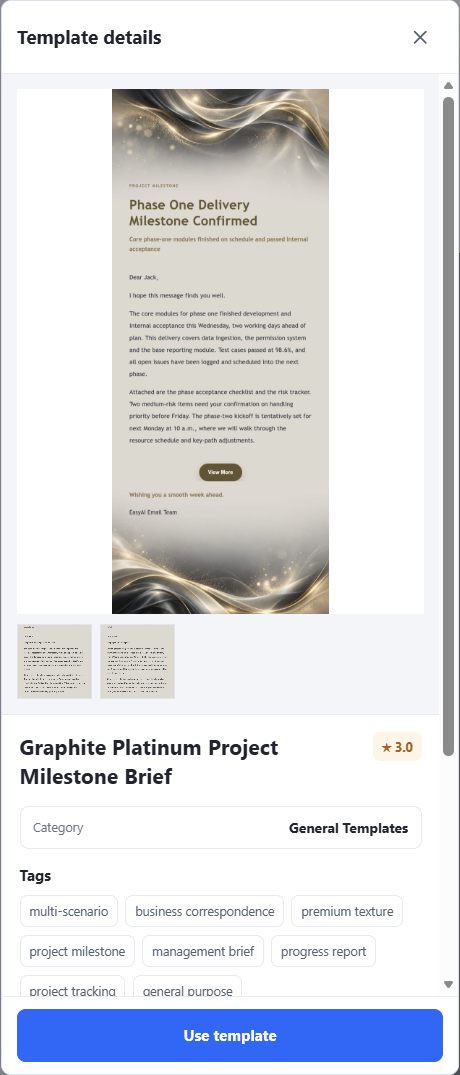
Once it understands the purpose, the EasyAImail browser plugin can recommend templates. It does not automatically apply one. The demonstration below uses Graphite Platinum Project Milestone Brief, selected after opening its real details and checking that its project-milestone purpose fits the task. You should make the same judgment for your own recipient.
After you select a template, the plugin asks only for the facts it still needs. Answer the questions naturally. Before confirming that there is nothing more to add, check the recipient name, date, link status, and signature.
Then review the complete HTML email, not just its paragraph text. Check the subject, greeting, key update, date, any link you mention, call to action, and signature. If the layout feels too energetic or the wording is too promotional, ask for a revision and confirm when you have no more changes before insertion.
The preview is only a checkpoint. When you choose to insert it, the result should be visible as the complete HTML email inside Gmail's unsent editor, while the EasyAImail panel remains beside the current task. It does not send automatically. You can still edit the draft, verify the recipient and attachments, and decide whether to press Gmail's Send button.
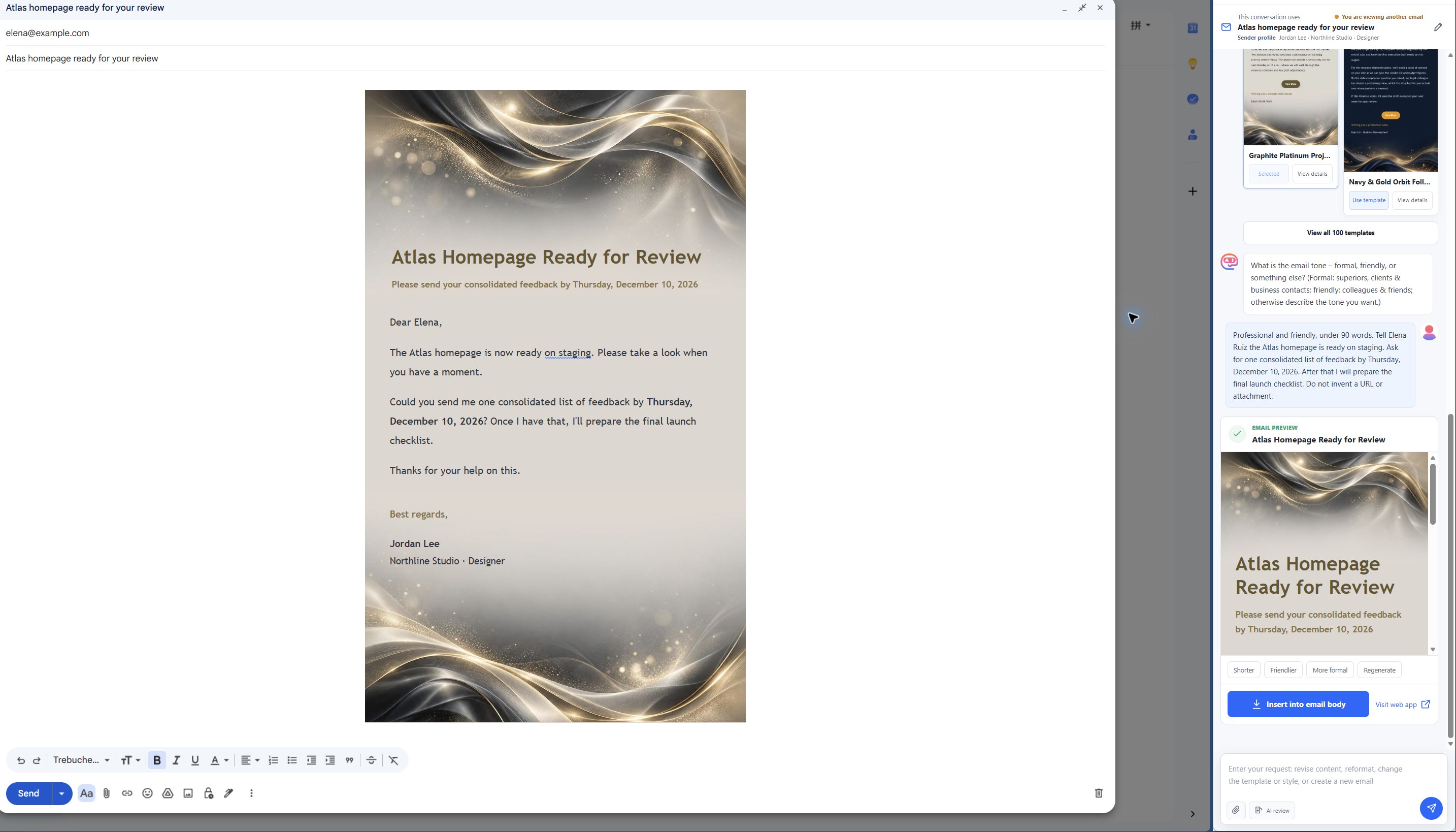
The saved draft is reopened here beside its original generation history. The context notice shows that EasyAImail retains the original conversation rather than silently switching to a different email.
For help with the final draft review, see how to review an important Gmail draft before sending. If a client has already received the update but has not replied, asking for feedback or approval without sounding pushy is a separate next step. To create your own single designed message, open the EasyAImail browser plugin beside a new Gmail draft.
What not to do
- Do not start with raw HTML code. Begin with the recipient, purpose, and next step. The code is not the communication problem you are trying to solve.
- Do not make a one-off message look like a campaign. Avoid oversized graphics or promotional blocks when a calm update is enough.
- Do not use a visual template to hide a vague message. The milestone, date, and requested action must remain easy to find.
- Do not treat insertion as sending. The Gmail draft is the last place to catch a wrong recipient, missing attachment, or overdone closing.
FAQ
Can I send one HTML email from Gmail without running a campaign?
Yes. The point is a single designed message for a real recipient or small group, not a bulk email program. With the EasyAImail browser plugin, you can create the HTML email and insert it into a Gmail draft for your own final review.
Does the plugin choose the template for me?
No. It can recommend templates after you explain the purpose. You inspect the details and choose the one you want to use.
Does an inserted HTML email send automatically?
No. It becomes an unsent Gmail draft. You retain control of the recipient, attachments, final edits, and Gmail's Send button.

 Get the Edge extension
 Get the Firefox extension