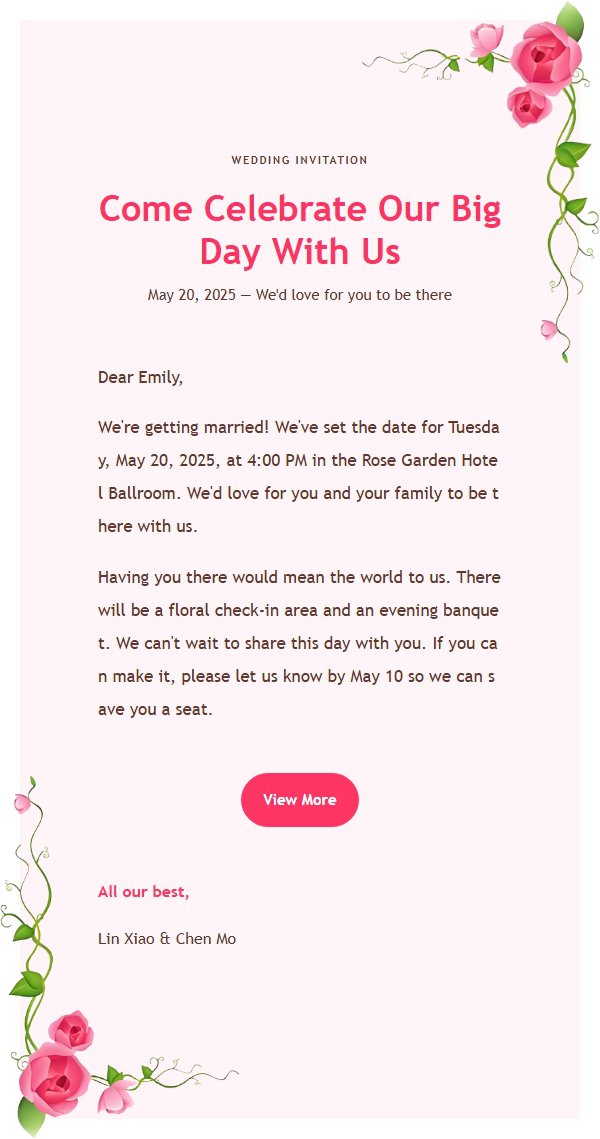
When people compare AI email tools, they often focus on the “generate” button and forget to ask what the tool actually does. Some tools return a block of writing. Others also help with layout, preview, and sender settings. Some are useful for occasional messages, while others fit a repeatable workflow. You do not need to rely on slogans. Run the same four practical checks below and judge the tool by the work it removes for you.
One more check is easy to overlook: not everyone needs an AI email tool. If you only send a two-word notice such as “Received, thanks,” writing it directly is faster. If a message needs legal force, consult a lawyer or follow your organization’s approved legal process. If your company already has a controlled template, brand system, and approval workflow, use those first. An AI tool is most useful when you need help clarifying an intention, finding the right wording, or handling the presentation at the same time.
1. Does it give you text, or a complete email?
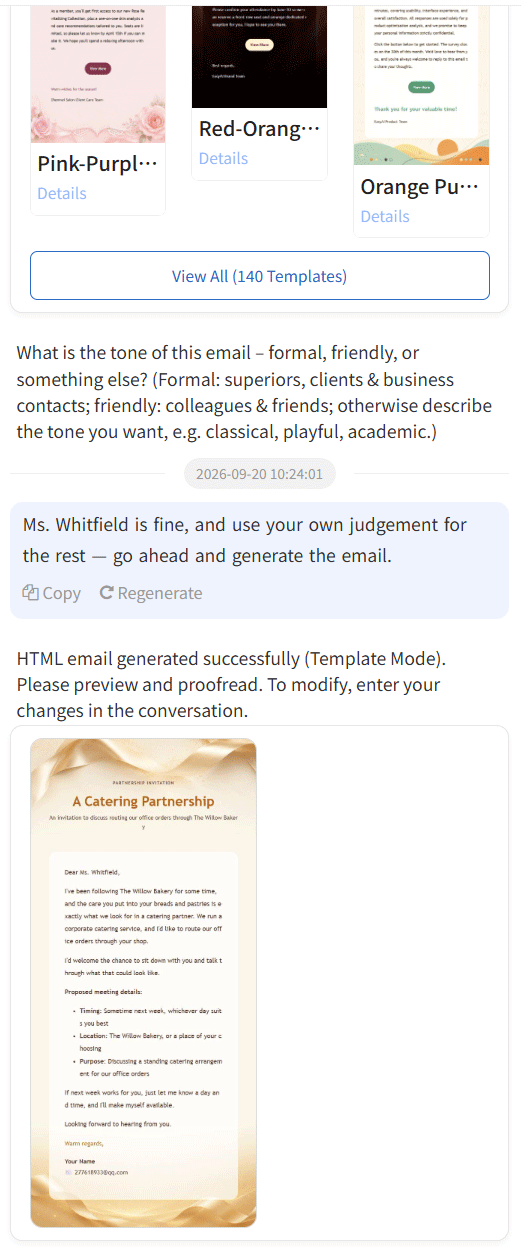
Start by checking the output boundary. A text-only tool can improve your wording, but you still have to copy it into an inbox, adjust paragraphs, add a subject and signature, and possibly rebuild images or buttons. It acts as a writing assistant rather than a complete email-making workflow. That may be enough for plain text. If you want to preview a finished email before sending, the test needs to go further.
Give the tool a realistic but simple request, such as a thank-you note to a hiring manager after an interview. Does it understand the recipient and purpose, then provide a subject, greeting, body structure, and sign-off? Or does it return a paragraph without context? Check whether you can preview the result in the product and edit it before any sending action.
If the tool claims to produce HTML email, ask whether it only makes something that looks good in a browser or whether it supports a complete preview and sending flow. The first saves layout time; the second may cover more of the path from intention to finished message. You can test a real but non-sensitive request in EasyAImail and note which steps you no longer have to do yourself.
2. Will it hold together in a real inbox?
A polished browser preview only proves that one surface rendered correctly. Outlook desktop, Outlook on the web, Gmail, and mobile clients handle CSS differently. Window width, image loading, and font substitution can change the result. The most useful test is simple: generate a message, send it to yourself, and open it in the clients you and your recipients actually use.
Look for four things: does the body overflow, do buttons and images stay aligned, is the text hierarchy still clear, and does the mobile version require horizontal scrolling? Do not keep zooming in on the best preview. If a client does not support an effect, the basic information should still be readable. Email compatibility must be tested in real clients; there is no honest promise of one identical result everywhere.
A tool that lets you preview before choosing to send is easier to evaluate. “Send” should remain an explicit action after generation, not an automatic side effect. Use your own addresses as test recipients and treat this as quality control, not as an experiment with a customer inbox.
3. Who is the sender?
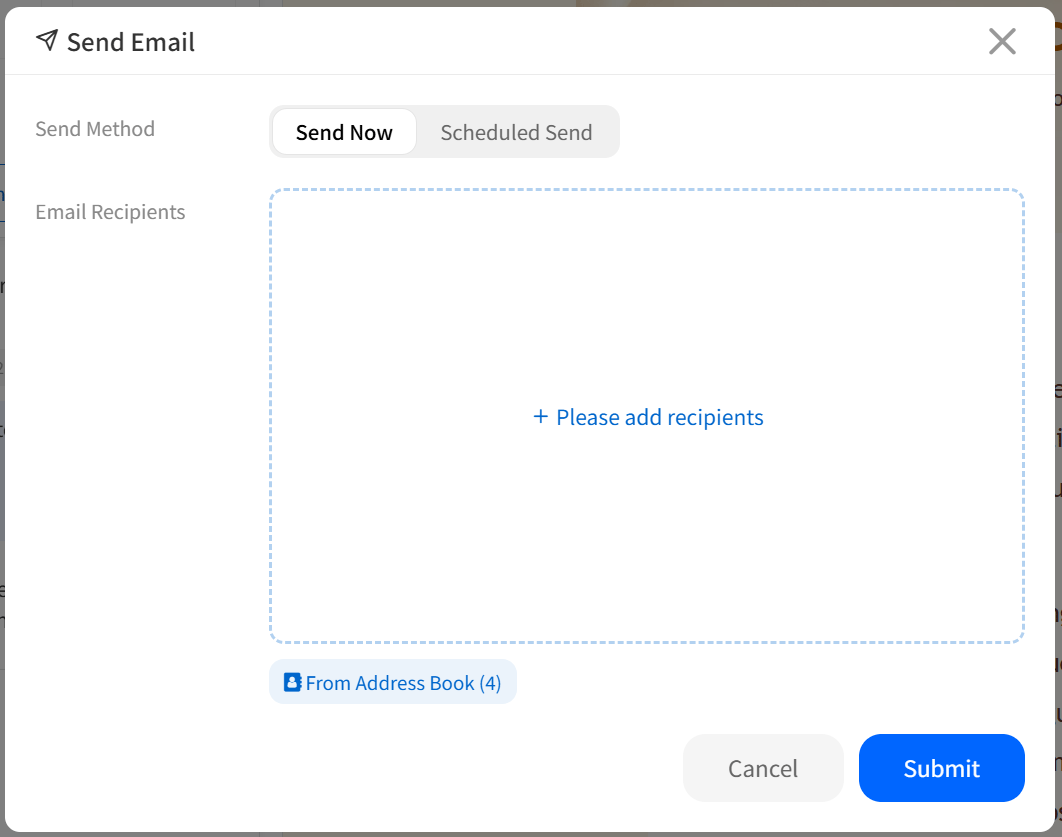
For a customer, partner, or hiring contact, the sender address is part of trust. Some tools can only send from a platform-assigned address. Others can use or connect to your own mailbox so that the recipient sees your address. Both models can be valid, but they fit different situations.
The practical check is visible: open the send window and see whether your name and email are clearly shown, and whether you can select or edit an authorized sender. Do not infer this from a profile page or from a phrase such as “email support.” Confirm it in the actual pre-send interface. During testing, use your own address and never click the final send action.
You can always copy the content into your own inbox and send it there, but then layout, attachments, signature, and recipient checks are back in your hands. The closer a tool is to a complete email workflow, the more clearly it should show who will send the message and from which address before you commit.
4. How does it charge?
Do not compare pricing by monthly cost alone. First estimate how often you will use the tool and which capabilities you actually need. Someone who writes two or three messages a month may not benefit from a subscription. Someone who writes customer follow-ups, invitations, and notices every week can divide the monthly price by expected use and compare that cost with the time spent writing, formatting, and testing alone.
Check what a free or trial version includes. Can you generate only short text, or can you use templates and preview the full email? Is the limit about volume, sending, or mailbox connection? Never assume that one successful generation tells you the long-term cost, and do not treat a free entry point as a promise that every feature will remain unchanged. Use the current pricing and product pages for the actual plan details.
Finally, make the reverse decision. If your organization already has a stable template, approval process, and sending system, switching tools may add little value. If you regularly get stuck on the opening, tone, or layout and are willing to review the result before sending, a tool that takes you from an idea to a previewable email is worth testing. Start with one realistic, non-sensitive message and complete the full generation, preview, and pre-send review before adding it to your routine.