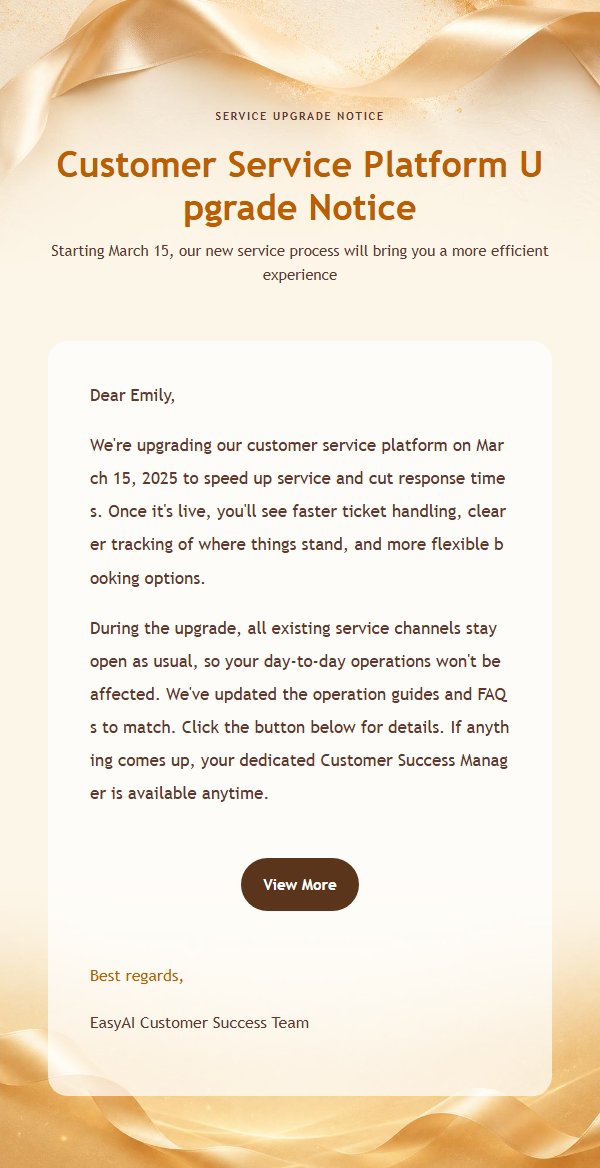
EasyAImail does one thing, and it's easy to state: you describe the email you need to send, and it hands you a finished HTML email you can send as-is.
"Finished" is meant literally. Subject, opening, body paragraphs, bullet lists, buttons, signature — plus the color, the spacing, and every inline style an email client needs to render it. You don't open a design tool afterwards.
It isn't the same as asking an AI for some text
Getting an AI to write email copy has been easy for a while. The hard part starts after that.
Text is the part AI handles well. But what you actually send is an email, not a block of text — it has to survive Outlook, hold its layout in Gmail, and stay readable on a phone. HTML email follows its own rules, and they are not the rules of web design: a layout that looks elegant in a browser can fall apart in desktop Outlook.
Most AI tools stop before this part. They hand you the words and call it done. This is the stretch EasyAImail actually covers.
The whole flow
Step one: say what you need.
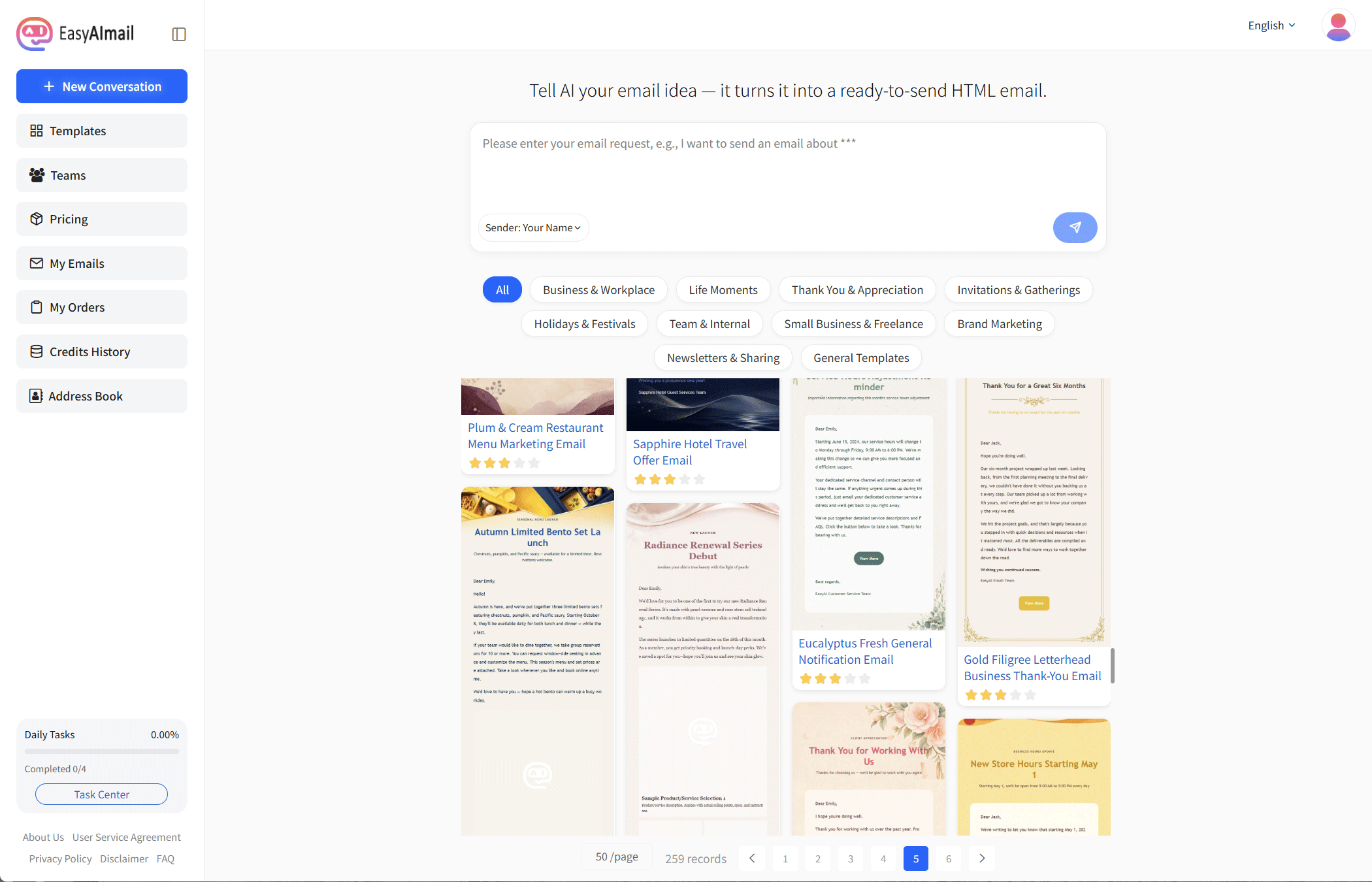
You land on the home screen after signing in. One input box in the middle. You don't have to write it all, and you don't have to settle on a format first.
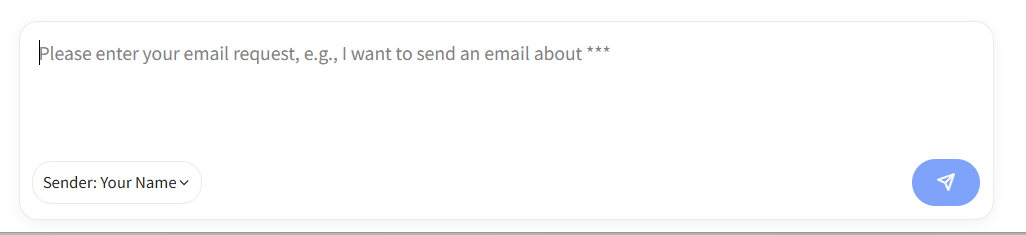
"I want to send an email about ___" is enough of a shape. The AI asks for whatever is missing — who it's for, how formal, which dates or amounts must appear. It starts writing only once it has enough.
Step two: it works out what kind of email this is, then picks layouts.
Once your request is in, it usually won't start writing straight away. It searches the template library and shows you a handful of matches.
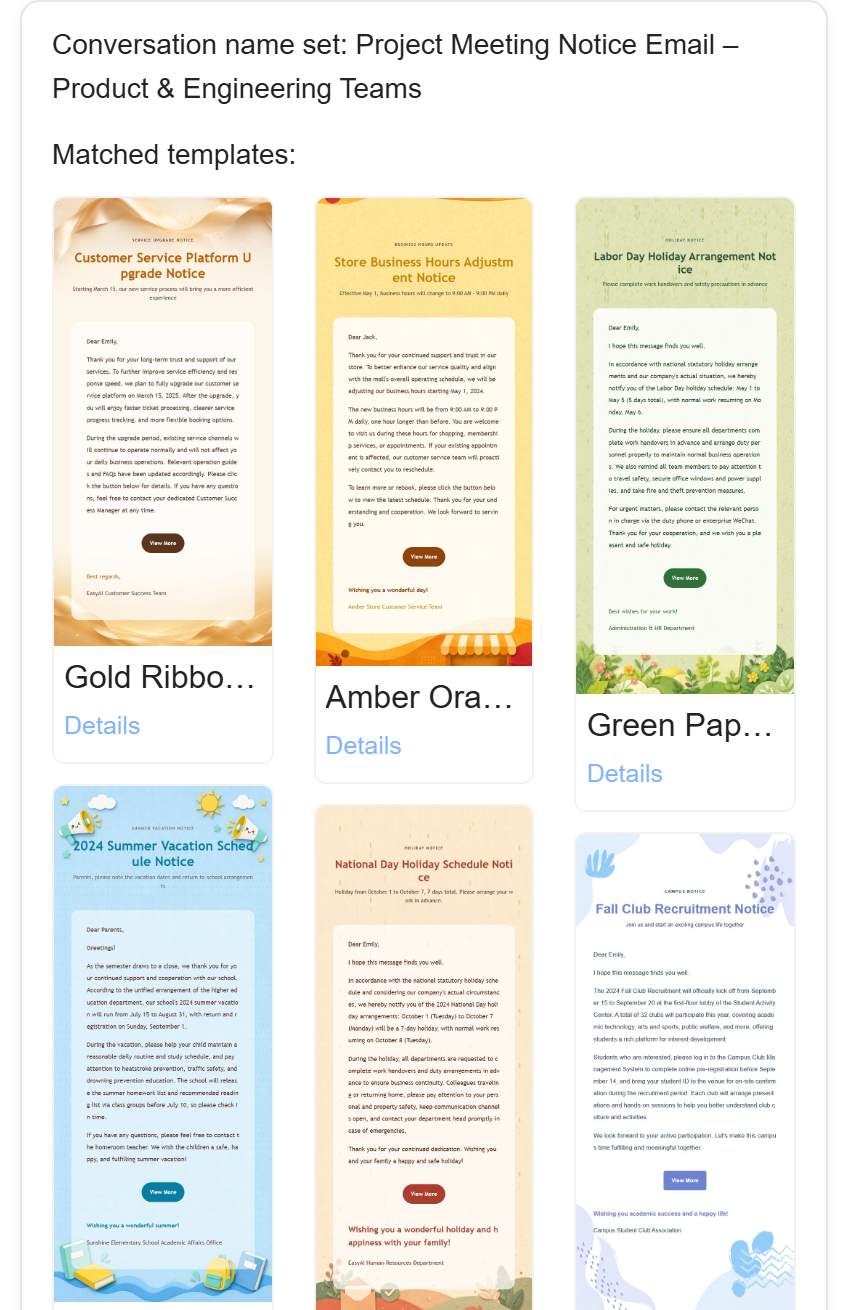
Each one opens into a sample email. Pick one, and your content is poured into that layout. These layouts were designed for email from the start — color, type size, and whitespace tuned to the constraints, not a skin stretched over a web page.
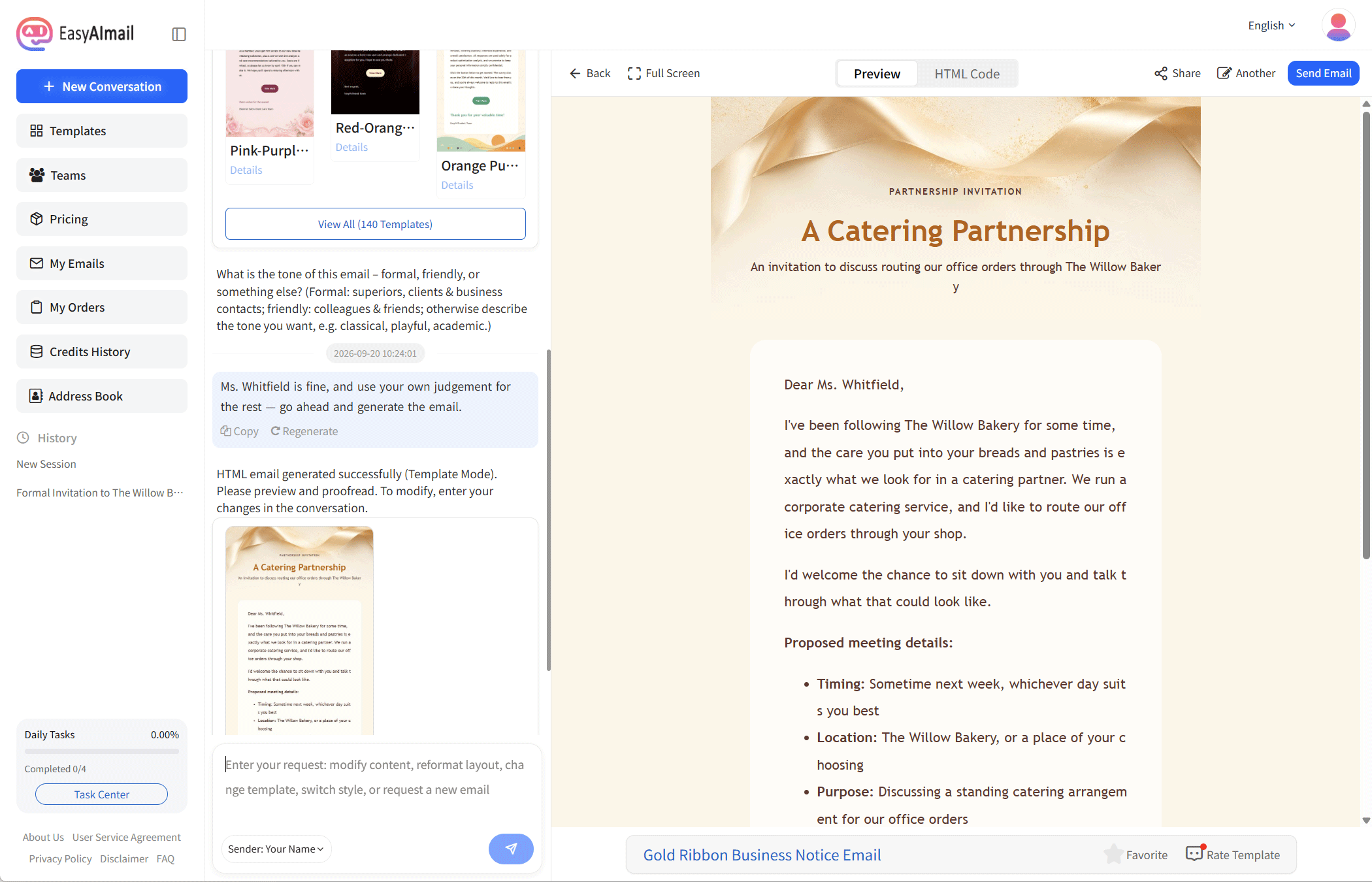
Step three: read the draft before you change it.
A first draft usually lands in under a minute. The first thing to do is read it — names, job titles, dates, and amounts are exactly what an AI gets slightly wrong.
To fix something, keep typing in the same input box. Change a sentence, shift the tone, cut a paragraph, or ask for a full re-layout — no new conversation needed. The earlier version stays where it is, so you can compare.
Step four: add recipients and send.
Click Send Email. Three things live in that window: the send method (now or scheduled), the recipients, and the sending mailbox.
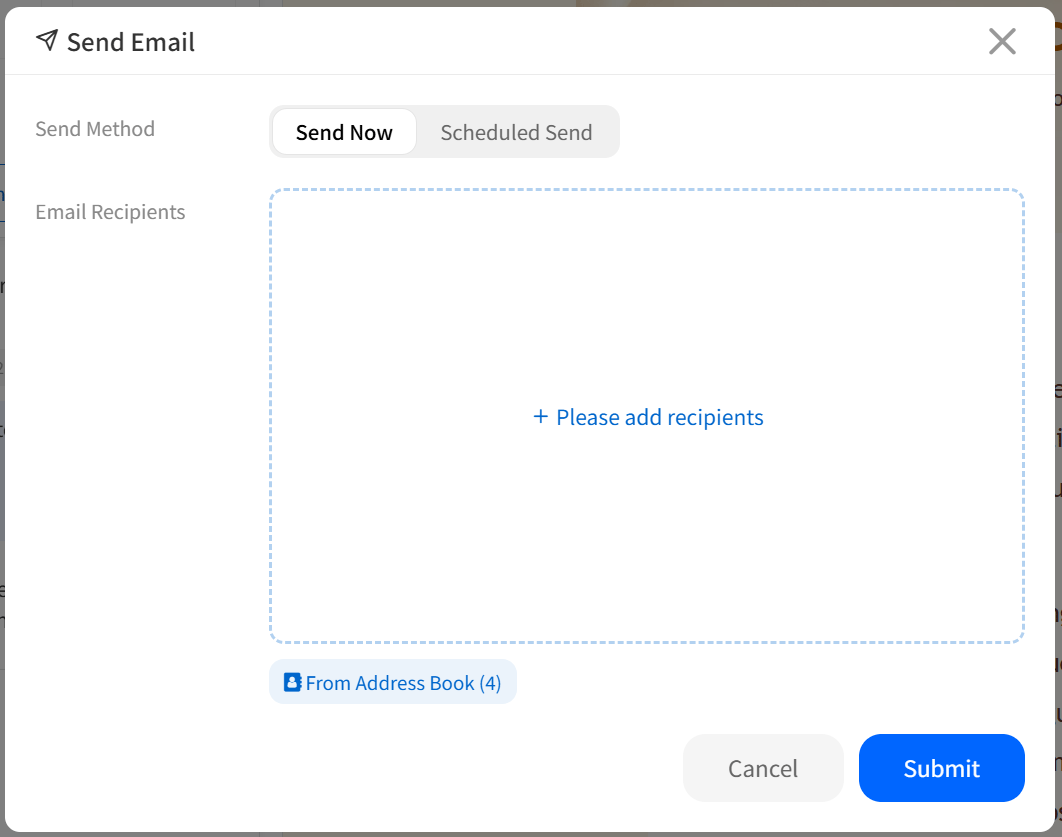
Recipients can be typed in or batch-imported from your address book. The sending mailbox is a paid-plan option: set one and the email goes out from your own address; leave it unset and the platform sends on your behalf and copies your sending address. That copy is the real result — it can differ slightly from the preview, and it's worth a look.
Generation and sending are billed in credits, pay-as-you-go. No subscription is required to start.
What it's good for
Not every email deserves this much care. Replying "got it" doesn't need it.
These do:
- Client follow-ups, quotes, and service-change notices
- Inquiry replies, order confirmations, and after-sales notes for overseas customers
- Cover letters, post-interview thank-yous, and application follow-ups
- Invitations, business thank-yous, and farewell notes — anything where the tone has to be right
What they have in common: the email stands in for you, and getting it wrong costs something.
Going deeper
That's the shape of it. For the details — where each button is, what the interface messages mean, how to choose a send method, how to save templates — this site has a set of step-by-step guides, starting with From a blank page to a sent email.
To just try it, open app.easyaimail.com and send one.