
Gmail clipping is frustrating because the email can look perfectly ordinary in your editor. Then a recipient sees a "View entire message" link, and the part you cared about most may be below it.
The practical rule is simple: check the final HTML source, not the design file, not a screenshot, and not the size of the image folder. HTML email grows in places that are easy to miss.
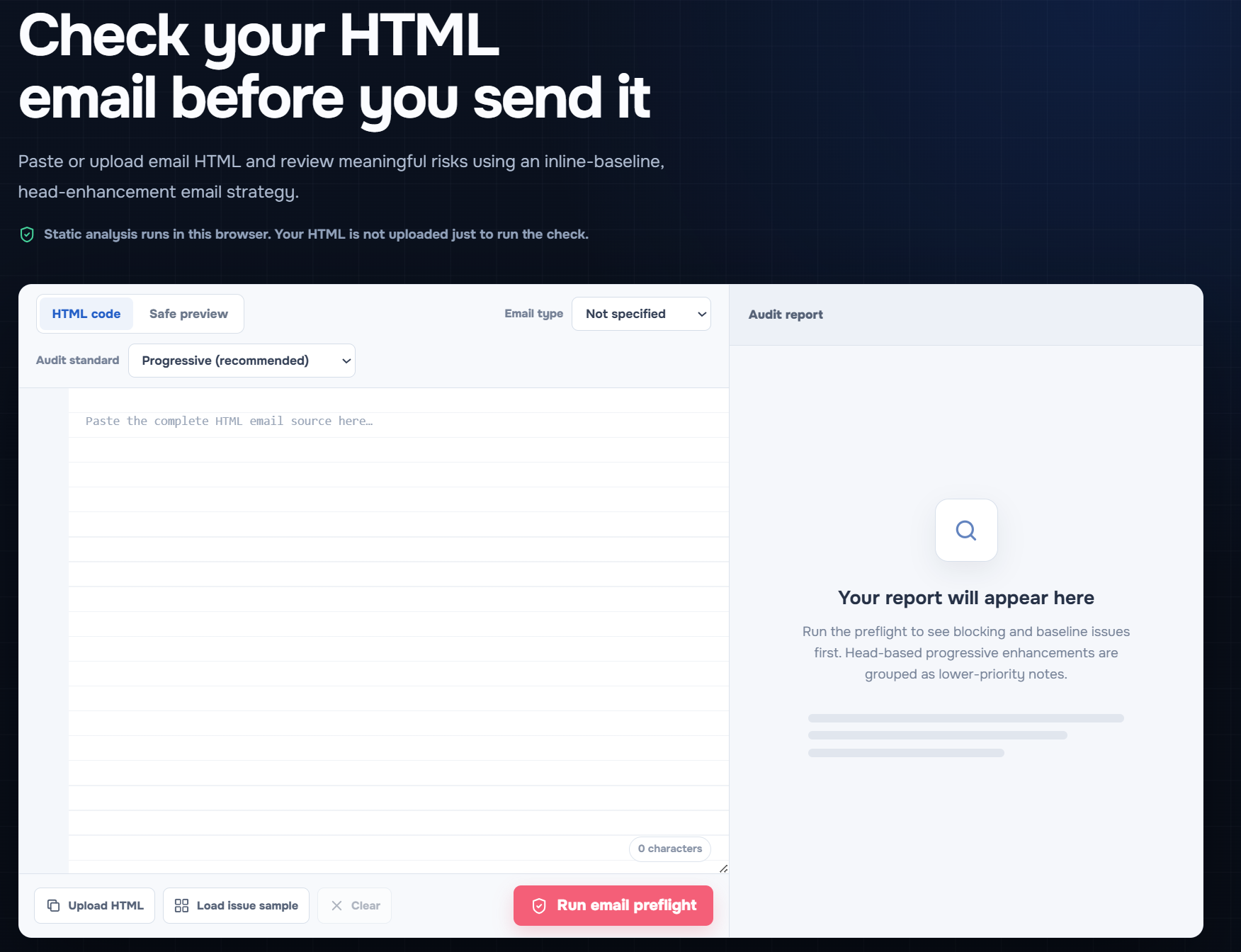
Open the free EasyAImail Email HTML Preflight to paste or upload your final HTML and review the report in your browser.
What Gmail clipping means in practice
Gmail can collapse an oversized email behind a "View entire message" link. In the EasyAImail Email HTML Preflight, a 158.7 KB test message is flagged as a blocker because it crosses the common 102 KB clipping-risk boundary.
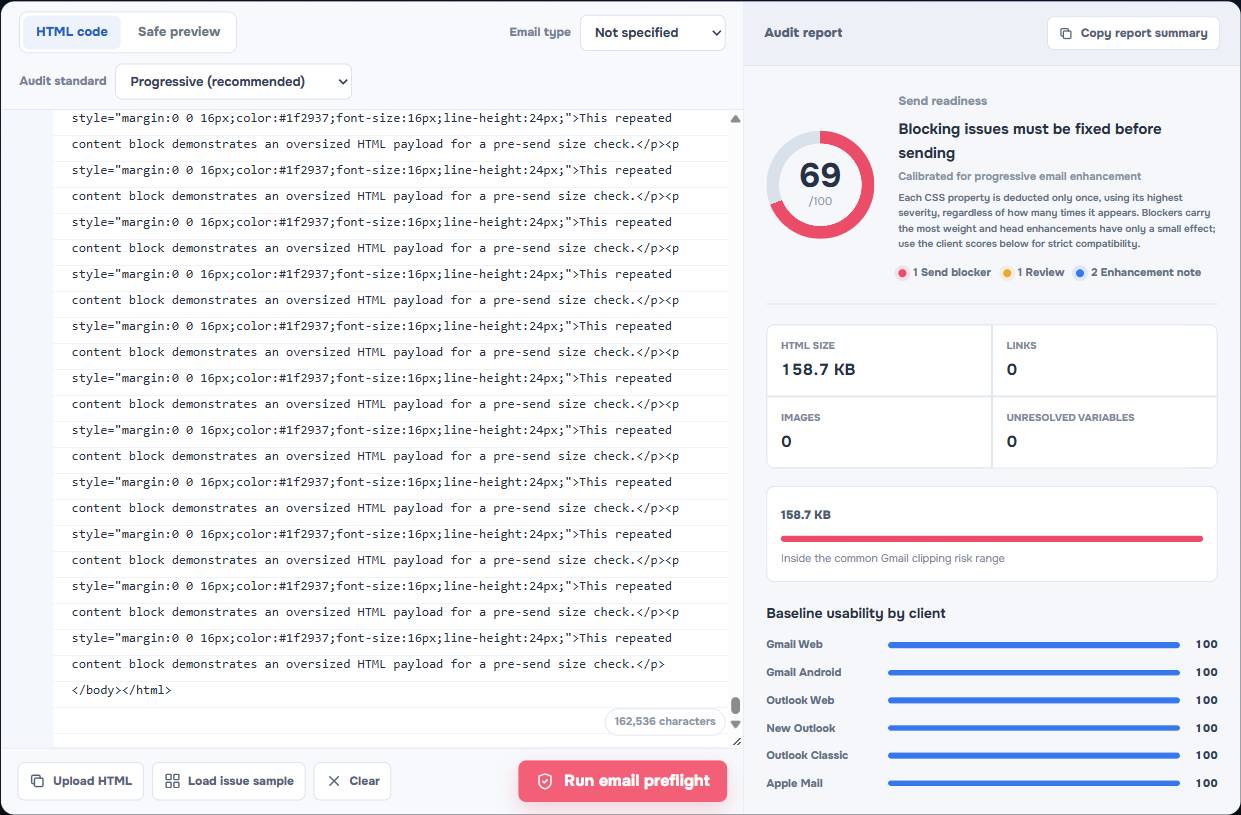
That does not mean every email just below a number is automatically safe forever. Sending systems can add tracking, merge values, or other markup after you finish editing. The useful habit is to leave room and inspect the final HTML that will actually be sent.
For a person-to-person project update, this is rarely the first thing to worry about. For a newsletter, product announcement, automated receipt, or dense branded template, it can become a real reading problem.
HTML size is not image size
This distinction causes a lot of wasted effort.
An image hosted at a normal URL may be several megabytes on a server while adding only a short `` tag to the email HTML. That image can still be slow to load, but its file weight is not the same as the HTML byte count.
By contrast, a base64-encoded image is pasted into the HTML itself. It can make the source enormous very quickly. So can repeated inline CSS, hidden preheader text copied too many times, duplicated modules, long legal blocks, and copied tracking markup.
Ask two separate questions:
- Is the HTML source small enough to avoid clipping risk?
- Are the images small enough to load comfortably for the recipient?
They are related deliverability and experience questions, but they need different fixes.
Why a modest email can become too large
The final payload is often bigger than the clean version you started with. Common causes include:
- Repeated inline styles on every paragraph, cell, and button.
- A module copied several times and then edited rather than reused carefully.
- Base64 images, especially logos or icons that could be hosted normally.
- Tracking parameters or personalization markup added by an email platform.
- Long conditional sections that are hidden for some recipients but remain in the source.
- Pasted content from documents or web editors that carries unnecessary markup.
Do not fix this by deleting the Outlook-specific fallback code at random. Some apparently awkward markup exists to preserve a readable baseline in restrictive clients. Start with duplication and embedded assets before removing compatibility code you have not tested.
A sensible size budget
There is no magic design number that suits every sender. A practical working target is to keep the final HTML comfortably below the clipping-risk line rather than treating it as a finish line.
If the report shows a message near the boundary, do not wait for a recipient to discover the problem. Reduce obvious source bloat, rerun the check, then send a test to the inboxes that matter for the campaign.
The right question is not "Can I save one more kilobyte?" It is "Can the recipient read the key message and take the next step without expanding a collapsed email?"
How to reduce HTML email size without breaking the layout
Start with changes that have a clear payoff.
Remove duplicate blocks
Look for repeated content modules, duplicate desktop and mobile copies, and abandoned sections left in comments or hidden containers. Keep only the versions the final email needs.
Replace embedded images when appropriate
Use a normally hosted image for a logo or illustration when that suits the campaign. Avoid putting a large image directly into the HTML as base64 data unless there is a specific reason to do so.
Simplify repeated inline styling
HTML email often needs inline CSS, but it does not need accidental repetition. Compare similar cells and paragraphs. Consolidate only when the rendered result stays readable in the clients you support.
Check the final platform output
If an ESP, CRM, or sending system adds personalization, links, or tracking, test after those additions. The clean source in a design tool is not always the final source that Gmail receives.
What the checker can and cannot tell you
EasyAImail Email HTML Preflight measures UTF-8 HTML bytes and classifies clipping risk. It also looks for other visible problems, including unresolved variables, placeholder links, image issues, Outlook compatibility risks, and contrast concerns.
It is static analysis in your browser, not a claim that it has delivered the message to every inbox. It cannot predict inbox placement or guarantee that a specific Gmail account will render every campaign identically. For a high-stakes send, pair the report with a real test message.
When the email is not written yet
If the bigger problem is not code but the message itself, start with the separate EasyAImail web app. Describe who you are writing to and what needs to happen. It recommends relevant templates, you choose one, then you answer only the missing questions before reviewing the HTML draft.
If you already have a draft in Gmail or Outlook, the EasyAImail browser plugin is a better fit for a deliberate draft review or a local rewrite. In both paths, you remain the person who checks the facts and decides whether to send.
FAQ
Do external images count toward Gmail's HTML clipping limit?
The image file on a remote server and the HTML source are different things. A normal image URL adds markup to the HTML, while a base64 image embeds the image data inside it and can add much more. Check the final source instead of assuming from the image file size alone.
Is 102 KB an exact guarantee?
Treat it as a practical clipping-risk boundary, not a promise that overrides every sending path. Leave room for final substitutions and test the sent version when the campaign matters.
Should I remove Outlook fallback code to make the email smaller?
Not automatically. Remove duplication and unnecessary embedded assets first. Compatibility markup can be the part that keeps a message usable in a restrictive inbox.
Can the checker tell me whether Gmail will put the email in spam?
No. HTML size and layout checks are not inbox-placement predictions. The report is for visible source risks before you send.
Check the message recipients will actually receive
The easiest Gmail clipping fix is catching source bloat before it leaves your editor. Paste the final HTML into the EasyAImail Email HTML Preflight, read the byte result alongside the content findings, and then test the version you plan to send.
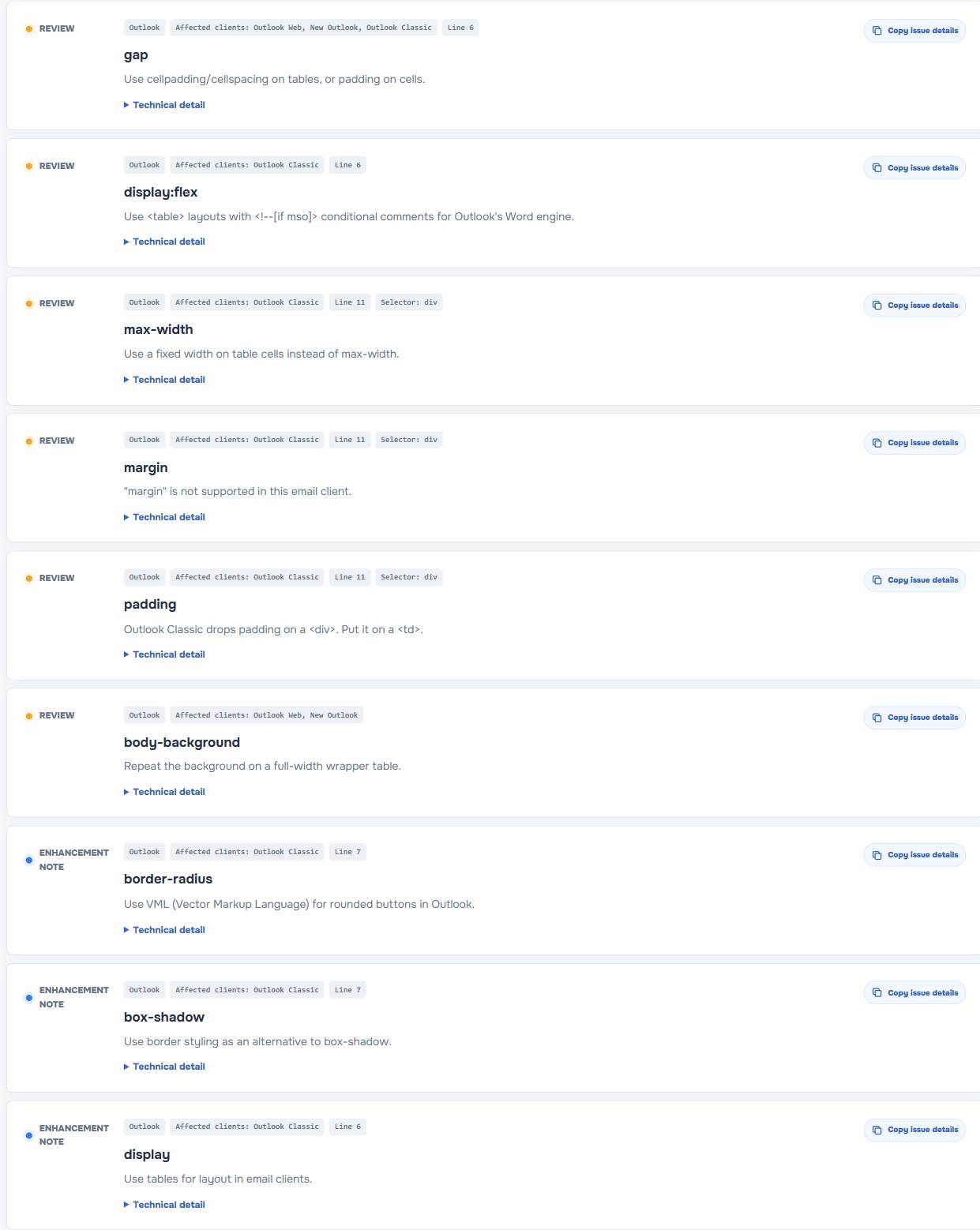
Outlook HTML Email CSS Support: What to Replace When Your Layout Breaks
See why HTML email layouts can break in Outlook, which CSS patterns carry risk, and what to replace before you send a message.
Read more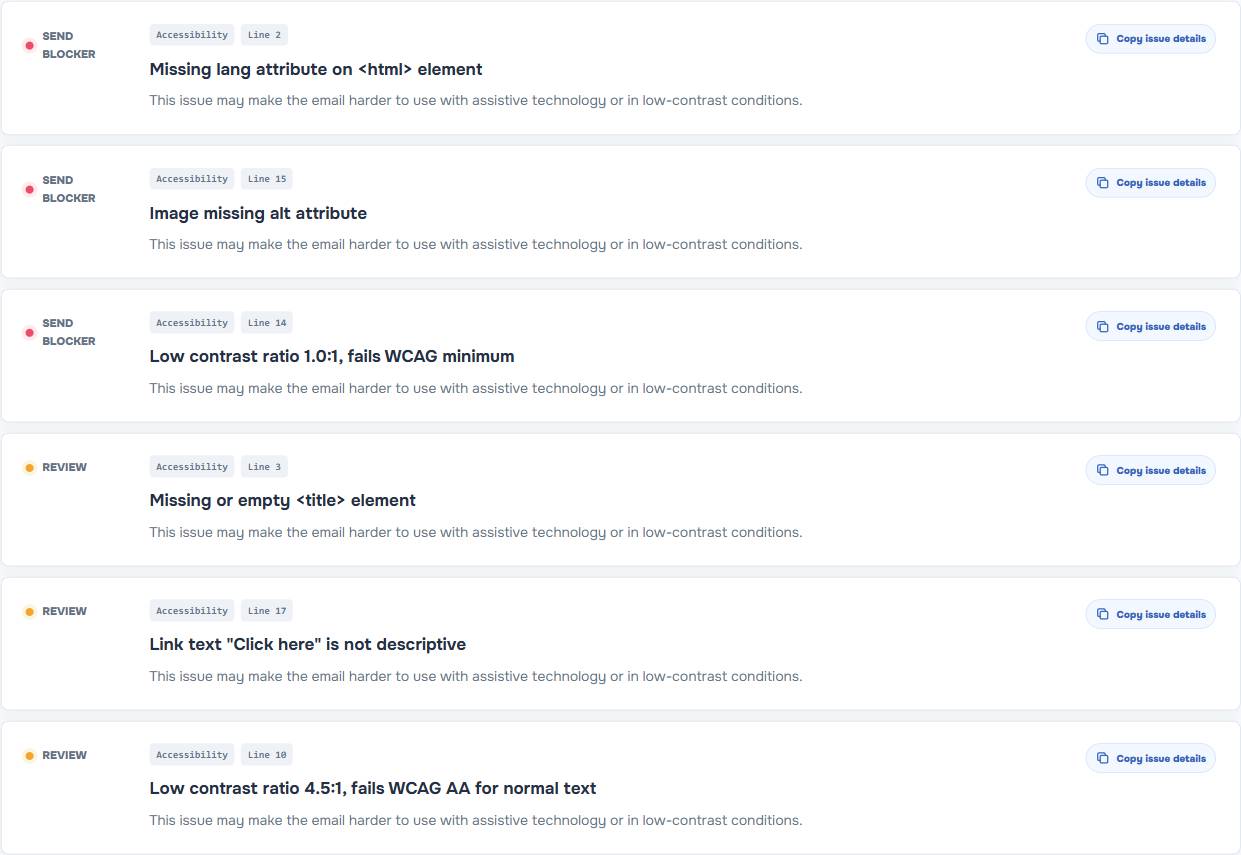
Email Dark Mode Testing: What to Check Before You Send
A practical email dark mode testing guide for Gmail, Outlook, and other inboxes: contrast risks, color changes, and pre-send checks.
Read moreHTML Email Accessibility Checklist: Alt Text, Contrast, Links, and Variables
Use this HTML email accessibility checklist to improve alt text, link wording, contrast, and unresolved variables before you send.
Read more