Long email threads are rarely difficult because every sentence needs an answer. They are difficult because the actual questions are scattered: a proposed time near the top, a request for a link near the end, and an assumption in between that nobody states plainly. A fast reply that misses one of those points can create another round of email.
The EasyAImail browser plugin is useful here because it works beside the Gmail message or thread you have opened. It gives you a visible summary, questions, action items, dates, and missing information before you decide what your reply should do. It is not scanning the rest of your inbox in the background.
Open the thread you really need to answer
Start with the actual Gmail conversation, not an inbox list or a search result. Then open the EasyAImail browser plugin beside it. In our test, the open message proposed a project follow-up meeting. The panel separated the question about availability from the practical details still missing: the agenda, the meeting link, and the expected duration.
That is a useful pause before writing. Read the questions and action items, then decide your reply direction yourself. For example: "I can meet on Friday instead. Please reply to Alex and ask for the agenda and meeting link."
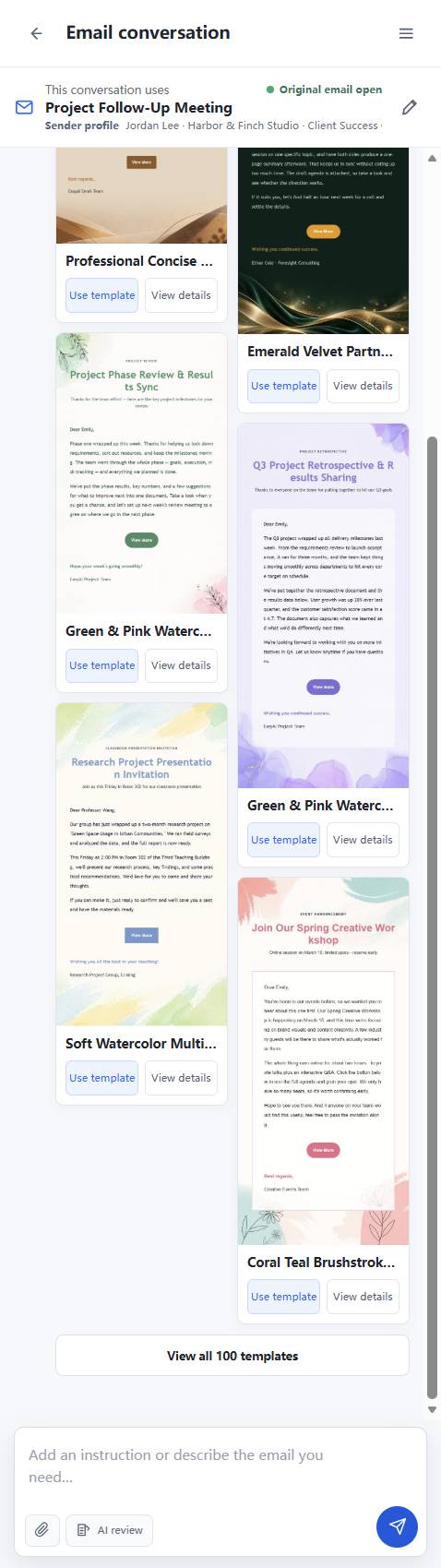
Let the plugin recommend templates, then choose one yourself
After you state the reply direction, EasyAImail recommends templates. It does not silently choose a design for you. A quick project reply usually needs a calm, readable layout, not a celebratory or decorative one.
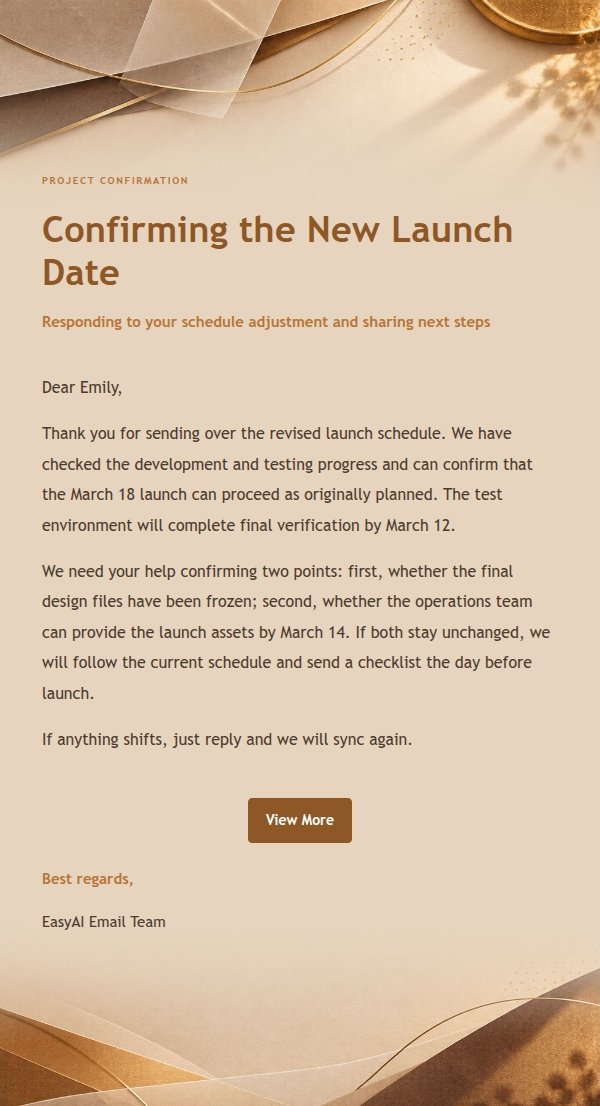
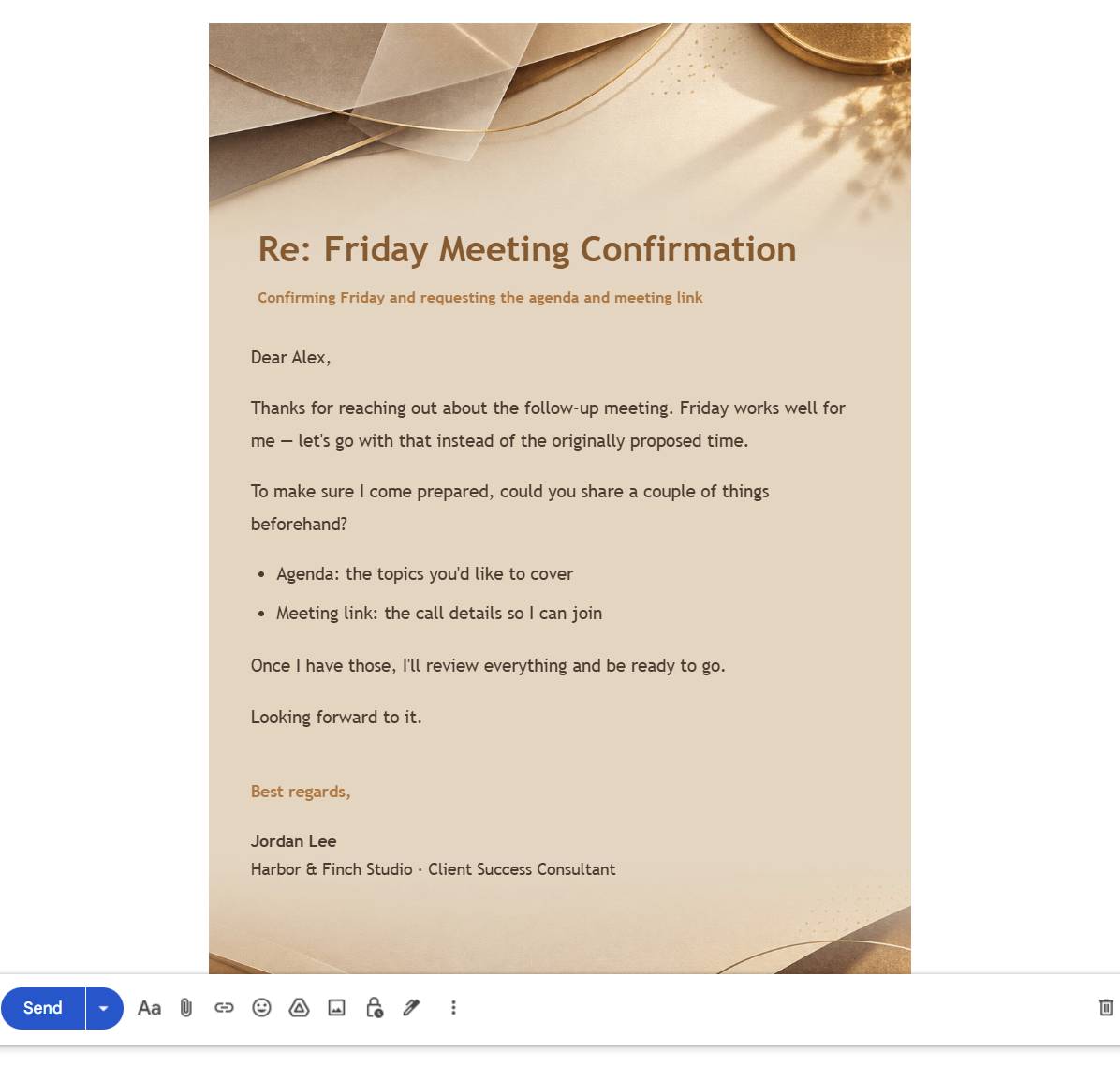
For this example, we opened the details for Professional Concise Reply Amber Paper. Its visible tags covered professional replies, workplace communication, project communication, team collaboration, and concise writing. The description also specifically mentioned meeting confirmations and project replies. Its cream, amber, espresso, and kraft-paper palette felt warm without making a routine meeting update look overproduced.
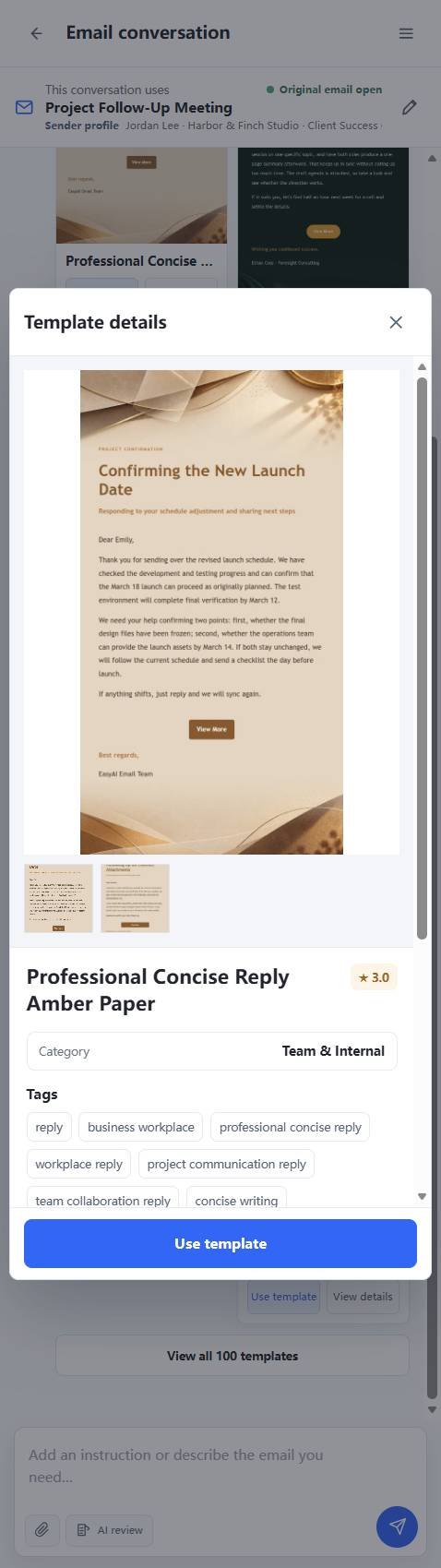
The point is not that this is the only acceptable template. Check the name, tags, colors, description, sample content, and preview, then make the selection that fits the person receiving the email.
Add only what the thread does not already answer
Once you select a template, the plugin asks for missing information. Answer the question in front of you instead of pasting a long brief. In this case, the useful addition was simply the tone: concise and friendly. The open message already supplied the recipient and original meeting context.
If you use a paid account, the plugin may also ask whether to add an external link button. A regular meeting reply did not need one, so we chose not to add it. That small decision matters: an email should not acquire a button just because the feature exists.
Review the HTML email before it becomes a Gmail draft
The result is a formatted HTML email in the side panel. Check the subject, greeting, alternative date, every question you meant to ask, signature, and layout. If one point is still missing, ask for a revision in the conversation.
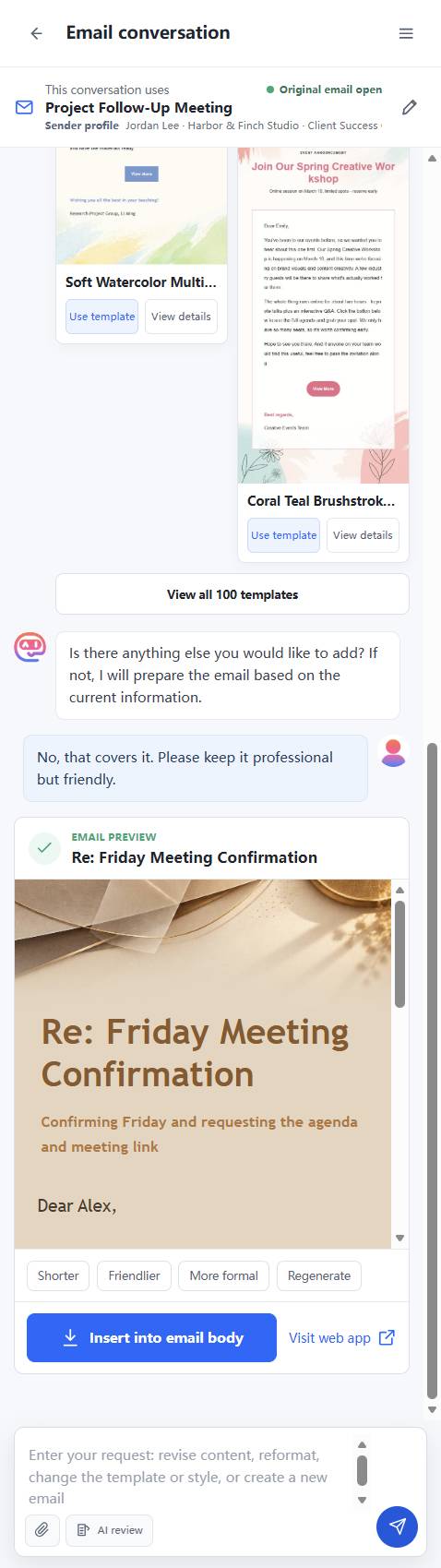
When you are satisfied, you may insert the result into Gmail's active editor. Inserting is not sending. The Gmail draft is still yours to review, edit, and send only when you are ready.
A simple checklist for long threads
- Did you open the correct Gmail thread?
- Did you read the visible questions, action items, and dates before replying?
- Does your reply answer the direct question and cover the practical follow-up?
- Did you choose the template yourself after looking at its details?
- Are the name, date, meeting link request, and sign-off accurate?
EasyAImail helps you turn a busy Gmail thread into a reply you can inspect. It does not decide your position or send the email on your behalf.
FAQ
Does the browser plugin read all of my Gmail?
No. It works from the message, thread, or draft you actively have open beside the panel. When you use an AI feature, the relevant current content is sent to EasyAImail and its configured AI service to provide the requested help.
Can I type my own reply intention instead of using a suggested action?
Yes. Suggested actions are shortcuts. You can describe a different reply goal in your own words whenever that better reflects what you need to say.
Will the plugin send the reply after it creates the HTML email?
No. You review the result first. Even after inserting it into Gmail, it remains a draft until you decide to send it.