
An email can look fine in a browser preview and still fall apart in an inbox. That is why people reach for an email CSS inliner: they need baseline styling to survive clients that ignore or selectively support CSS in the document head.
A reliable email CSS inlining workflow does not mean "move every rule into a style attribute." It means moving the declarations that can safely become a durable baseline, preserving the rules that need to stay where they are, and then checking the final HTML before a real inbox test.
What an email CSS inliner actually does
An inliner matches CSS selectors to elements and writes the matching baseline declarations into each element's style attribute. For a button, that can turn a shared .button rule into the styles the button carries directly.
That is useful because email clients are not ordinary browsers. A rule that works on a web page can be ignored, partially supported, or handled differently in an inbox. Inline styles give the recipient a more dependable starting point.
EasyAImail's Email CSS Inliner and Size Optimizer accepts complete HTML or separate CSS. It is designed to inline matched baseline styles while keeping responsive and email-specific structures intact. It does not fetch external CSS, images, or other resources from your HTML.
Why "inline everything" is the wrong goal
Inlining is a compatibility technique, not a license to flatten every part of an email into one long line of attributes. Two kinds of code especially need care.
Media queries still belong in the head
Mobile adjustments such as @media (max-width: 600px) cannot be represented as a normal per-element inline declaration. The same is true for some dark-mode rules, font declarations, keyframes, pseudo rules, and selectors that only make sense as CSS rules.
If you strip them out in the name of inlining, the desktop fallback may survive while the smaller-screen experience becomes harder to read. Keep responsive enhancements as enhancements, then make sure the baseline HTML still makes sense without them.
Email fallback code is not ordinary clutter
Outlook conditional comments, VML, client-specific selectors, and template syntax can look awkward when you compare them with modern web markup. They may still be the reason a background, button, or layout remains understandable in a restrictive client.
Start by removing genuine duplication, abandoned sections, or pasted web-editor markup. Do not delete compatibility code simply because it is unfamiliar. For the client-specific layer, see Outlook HTML Email CSS Support.
Use a conservative conversion, then inspect the output
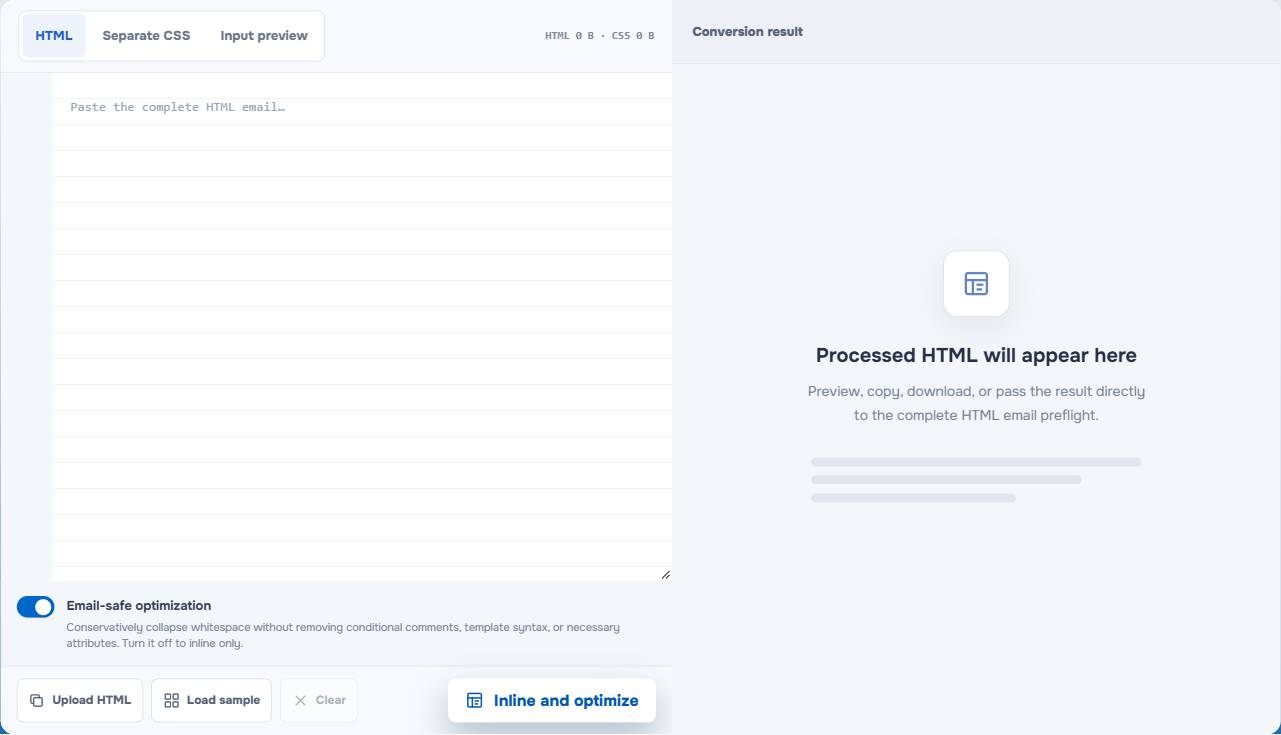
Paste the final HTML or add CSS separately, leave email-safe optimization on when you want a cautious whitespace cleanup, and run the conversion. The output is not a substitute for review. Open the processed HTML, compare the source, and look at the safe preview before treating it as ready.
In the visible tool test, the sample moved from 589 B to 613 B after inlining. That is a useful reminder: inlining can increase source size because the same declaration is repeated across several elements. The result panel also shows how close the processed HTML is to Gmail's 102 KiB warning.
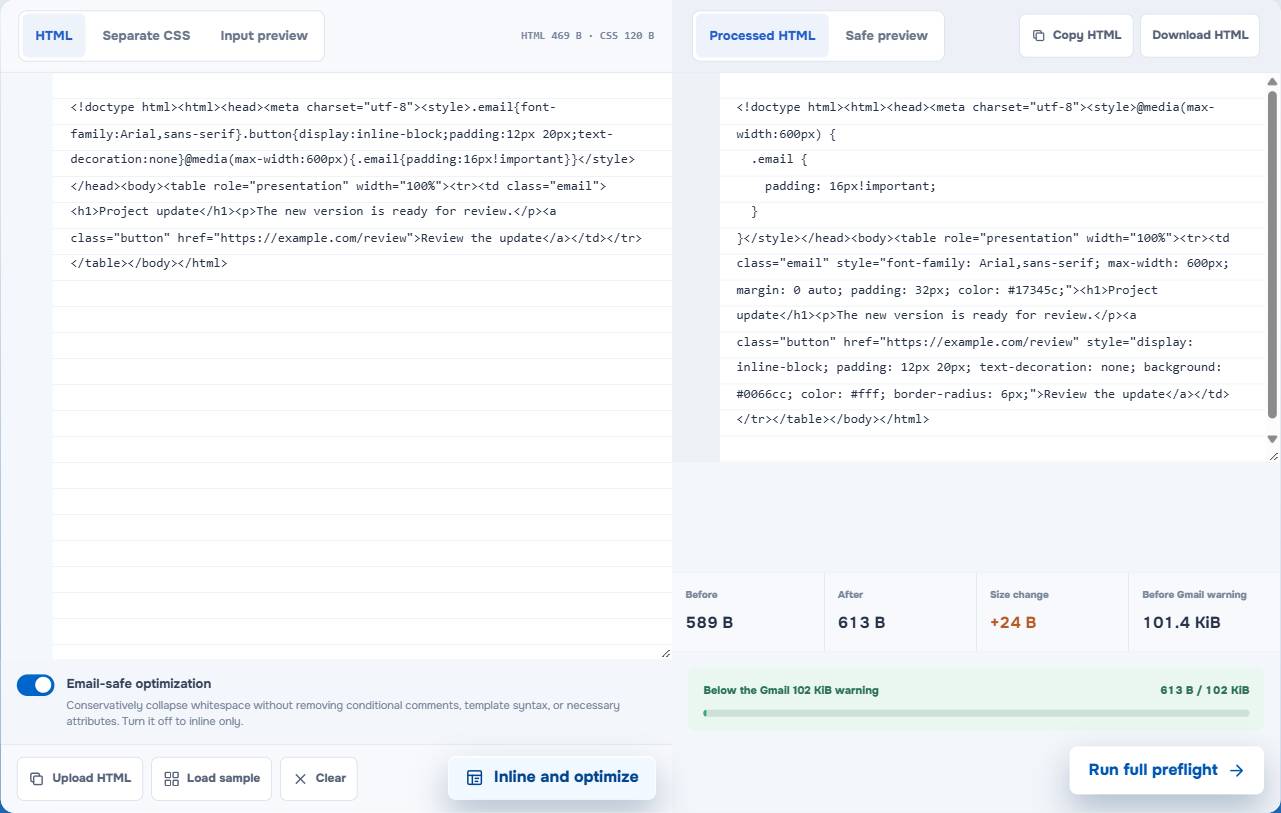
The goal is a clearer baseline, not the smallest possible number. For the size question itself, read Gmail Clipping at 102 KB.
What to check before you keep the processed HTML
Check which declarations won
Existing inline styles and !important priority can affect the final result. Compare a representative heading, paragraph, button, table cell, and link. If a brand color, line height, or button padding changed unexpectedly, fix the source rules and rerun the conversion instead of hand-editing a dozen copies.
Check that responsive rules survived
Look for your media queries, dark-mode handling, and any selector-based behavior that could not safely be turned into an attribute. An inliner should strengthen the ordinary state without silently discarding the responsive layer.
Check the byte cost after conversion
Repeated inline declarations are sometimes the right tradeoff. They are still repeated bytes. If the message was already near Gmail's clipping-risk range, run the complete check on the processed output rather than assuming optimization made it smaller.
A practical order for preparing email HTML
Use this sequence when you already have an exported template or an email built in a design system:
- Keep a clean source copy with your original CSS and compatibility code.
- Inline only the final HTML you are preparing for inbox testing or handoff.
- Compare the processed source and the preview for representative content blocks.
- Check the processed HTML for Gmail size, Outlook risks, dark mode, links, images, variables, and accessibility.
- Send a real test to the inboxes that matter before a high-stakes or high-volume send.
The EasyAImail Email HTML Preflight is the next step for that final static review. It identifies source-level risks; it does not promise identical rendering in every account or predict inbox placement.
When you do not need an inliner
If your email was already produced by a system that delivers its baseline declarations inline, processing it again may add noise without solving a problem. Check the source first.
And if you do not yet have an email, code is probably not the bottleneck. In the EasyAImail web app, you describe the situation, AI recommends relevant templates, you choose the one that fits, and the conversation gathers only the missing details before you review the complete HTML email. You can revise it in conversation, and you remain responsible for the final review and send decision.
FAQ
Does inline CSS make every email client render the same way?
No. It creates a stronger baseline for declarations that can safely be placed on elements. Client engines still differ, which is why responsive code, client-specific fallbacks, and real inbox testing remain useful.
Should I remove media queries after inlining CSS?
Usually no. Media queries describe conditional behavior that normal inline attributes cannot express. Keep them unless you have deliberately tested a simpler source and know they are unnecessary.
Why did my HTML get larger after CSS inlining?
A shared rule can become many repeated inline declarations. That can be a reasonable compatibility tradeoff, but it is a reason to measure the processed HTML rather than assuming that "optimize" always means smaller.
Can the tool safely load images or external stylesheets from my email?
No. The tool does not fetch external resources. Paste the relevant HTML and CSS, then review the resulting code and preview yourself.
Prepare the baseline, then test the message
Before you hand off or send the HTML, use this order: preserve the source, inline the durable baseline, inspect what stayed in the head, measure the result, run preflight, and then send a representative inbox test. That sequence is slower than blindly pressing "inline," but much faster than repairing a broken message after recipients have seen it.