
How to Add Your Company Name and Job Title to an EasyAImail Signature
After signing up for EasyAImail, a new user can usually generate a workplace email quickly. A common first-time problem is that the message looks complete, but the signature sho...
How to Add Your Company Name and Job Title to an EasyAImail Signature
After signing up for EasyAImail, a new user can usually generate a workplace email quickly. A common first-time problem is that the message looks complete, but the signature shows only a personal name. A client, teammate, or partner still cannot tell which company you represent or what your role is.
The practical fix is to complete the sender profile once, before starting several work-email conversations. After that, emails created with the same sender account can reuse the company name and job title in the signature.
> The screenshots use fictional demo details: Clara Morgan, Clearbrook Email Studio, and Client Projects Consultant. Replace them with your own information when you use the tool.
Step 1: Edit the sender profile first
Open EasyAImail and start a new conversation. Near the composer, click the current sender to open “Select Sender Email.” If you do not have multiple sender accounts, you do not need to add one. Open the current account and choose “Edit.”
Complete these fields:
- Name: the name you want recipients to see in the signature
- Company: your company, studio, organization, or team
- Position: the role you want to use in this work context
Submit the changes and wait for the page to reload. When the updated account appears again, select it and click “Confirm.” The reload matters: filling the form alone may not make the updated sender the active account for the next conversation.
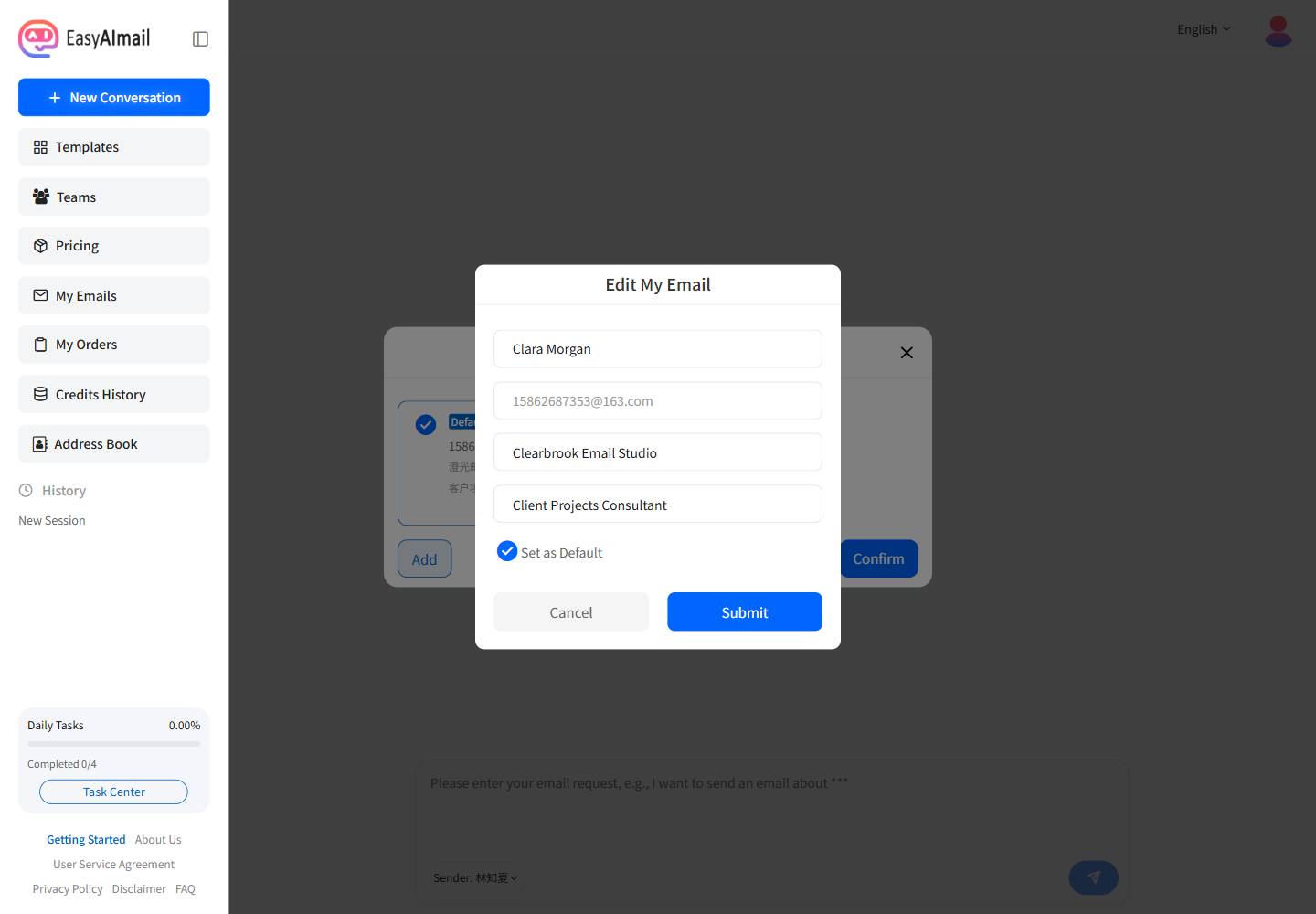
The screenshot shows “Clearbrook Email Studio” and “Client Projects Consultant.” In your own profile, use a company name that recipients will recognize and a concise title that describes your role. A full introduction sentence does not belong in the position field.
Step 2: Let the conversation collect the missing details
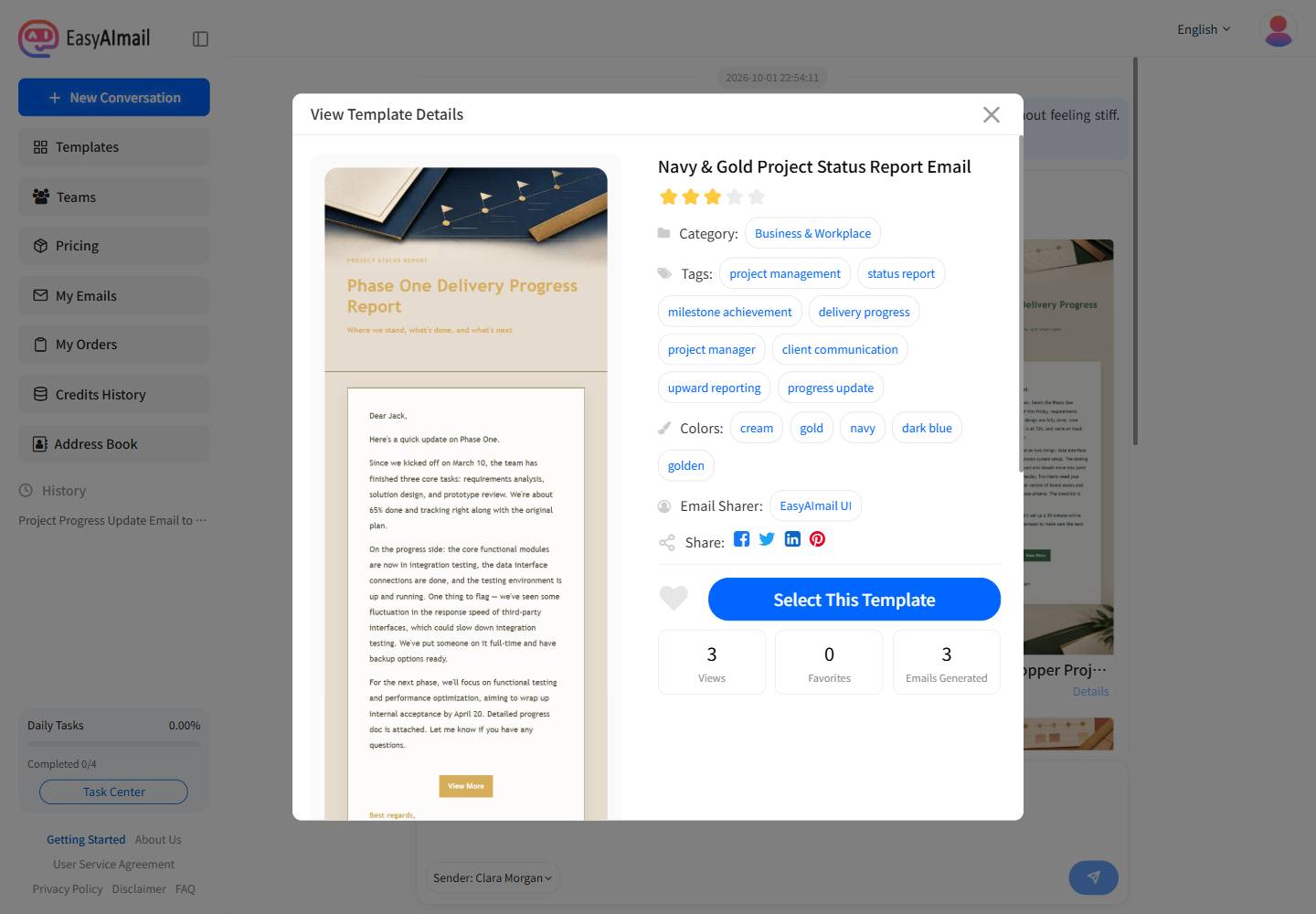
After you describe the email, EasyAImail recommends templates based on the recipient relationship and the purpose of the message. A recommendation is not an automatic decision. Open the template details and review the name, tags, colors, description, and example before choosing it yourself.
Once a template is selected, the AI may ask different questions for different scenarios. Answer the question that is currently on screen rather than pasting the entire brief at once:
- Who will receive the email and how should the person be addressed?
- What is your relationship and what is the background?
- What should the email accomplish, and which facts must be included?
- Should the tone be formal, friendly, concise, or reassuring?
- Do you need an email link, product, or button?
When the key information is complete, the AI asks whether you have anything else to add. Confirm that you are done, review the generated HTML email, and make the final decision about sending it yourself.
Three practical workplace examples
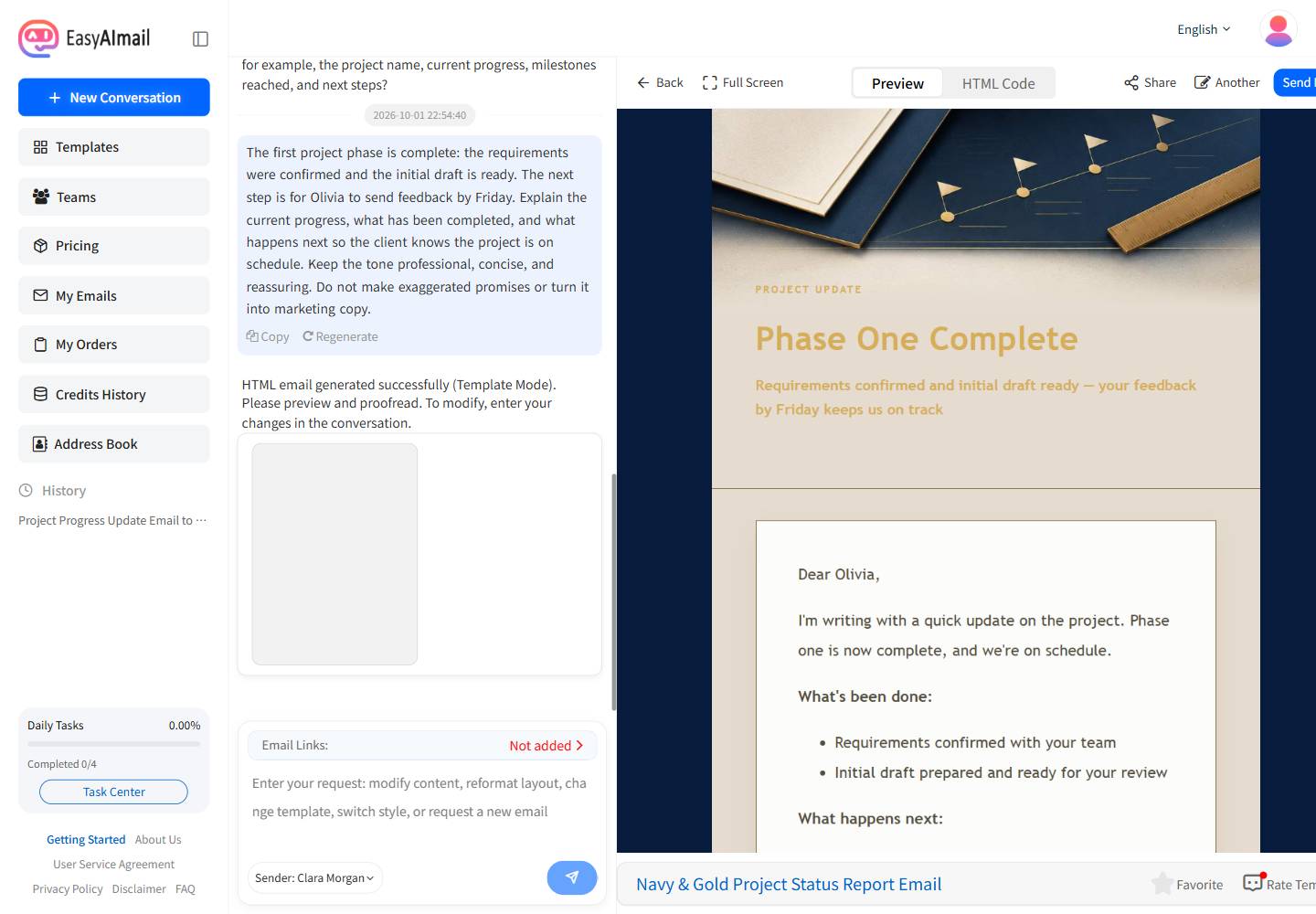
1. A project progress update for a client
Give the AI the completed phase, the work that is ready, the feedback you need, and the next deadline. In the demo, the first phase is complete, the requirements and initial draft are ready, and the client should send feedback by Friday. The generated preview keeps the company and position in the sender signature.
The selected example was Navy & Gold Project Status Report Email. Its detail page described project reporting, milestones, client communication, and next steps. You should still inspect the current details before choosing a template for your own message.
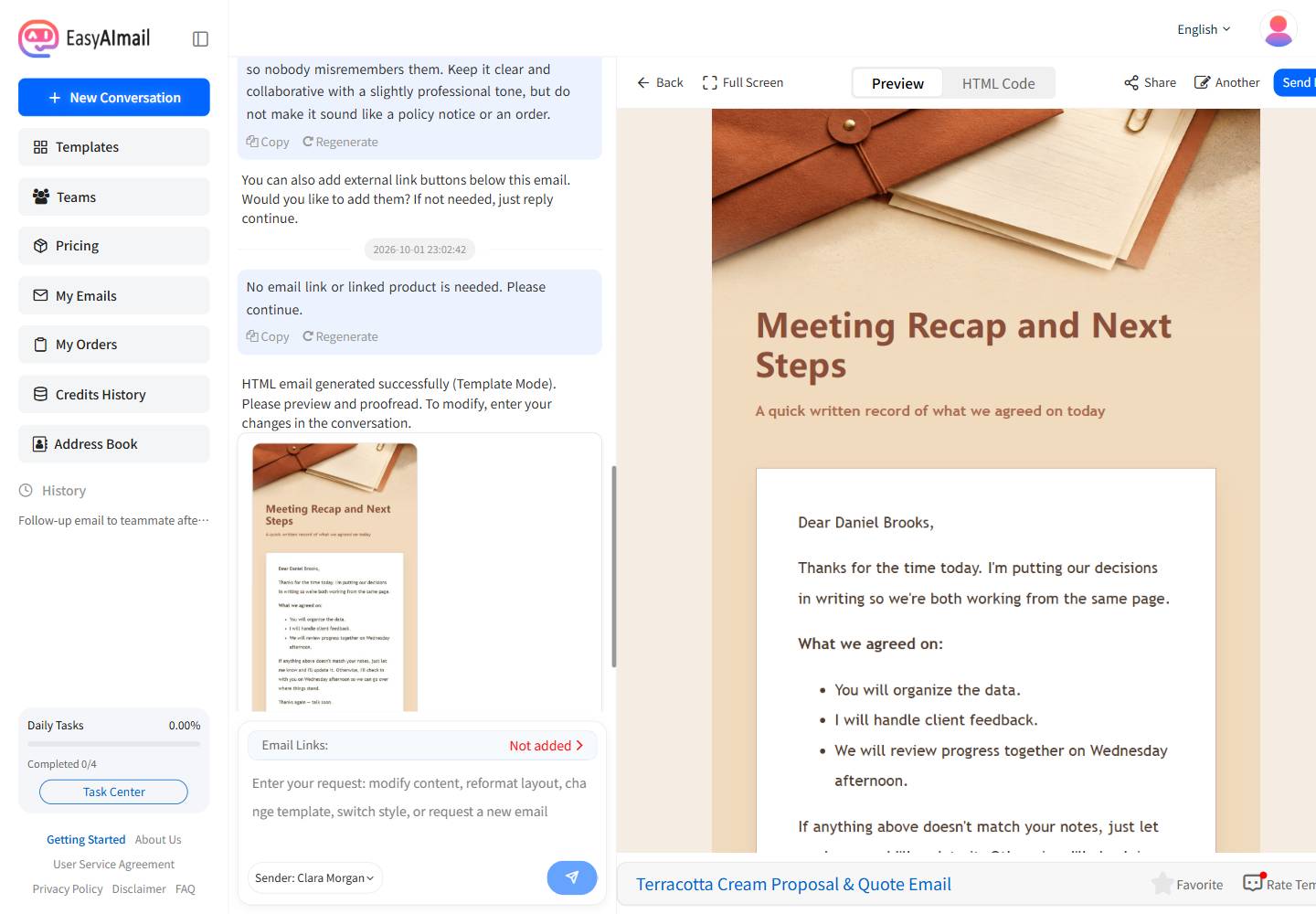
2. A meeting follow-up for a teammate
After a team meeting, ask the AI to turn the assignments and the next review time into a short written record. In the demo, Daniel organizes the data, the sender handles client feedback, and the team reviews progress together on Wednesday afternoon. The message should feel clear and collaborative, not like an internal order.
3. A polite payment reminder for a client
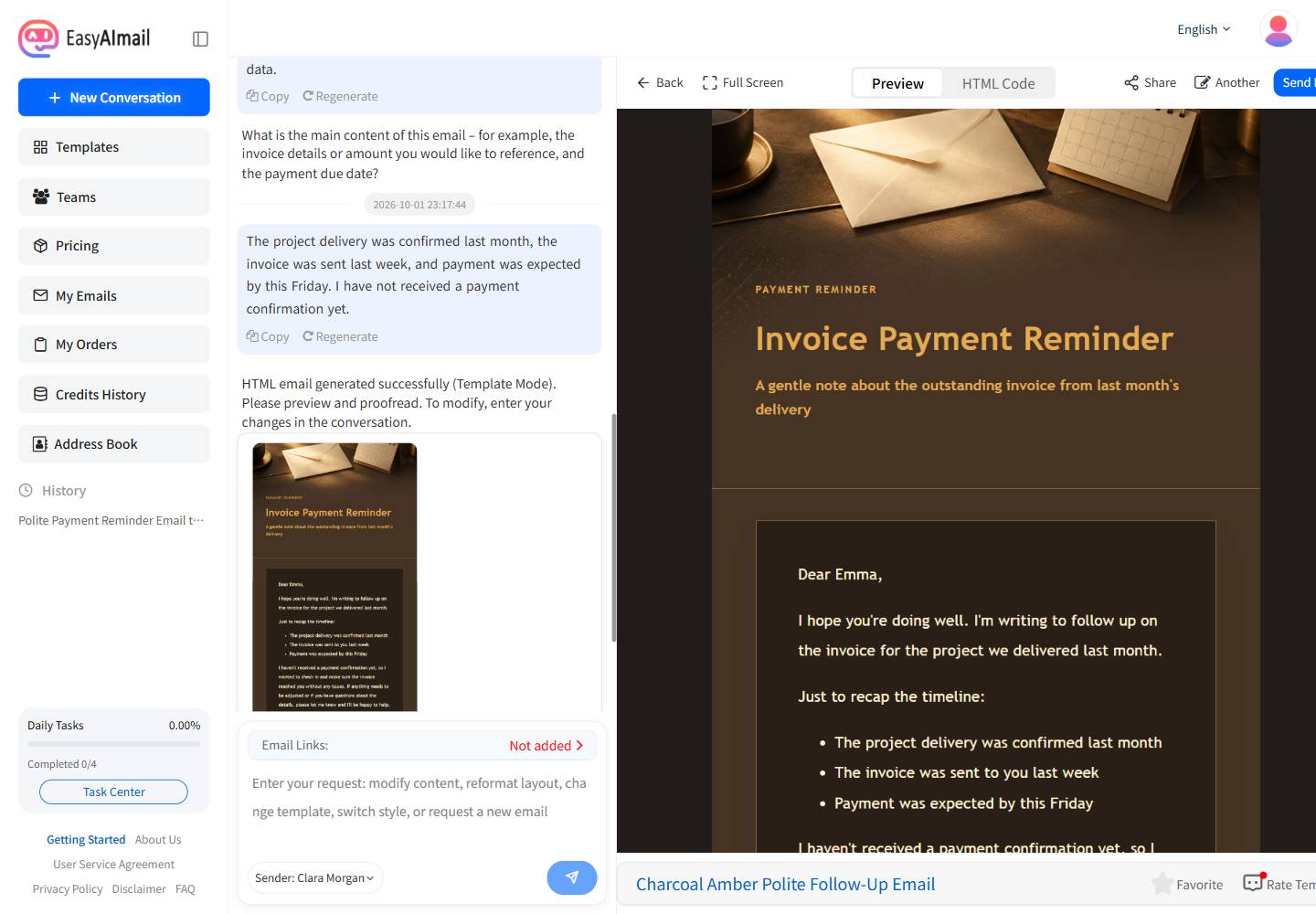
A payment reminder should state the facts without sounding threatening. In the demo, delivery was confirmed last month, the invoice was sent last week, and payment was expected by Friday. The email gently asks the client to review the invoice and offers to provide more information if needed.
What to check before sending
Before you click send, check four things:
- The signature contains the name, company, and position you intended to use.
- The recipient and salutation are correct and do not contain private data that should not be included.
- Project facts, dates, assignments, and payment details match your original request.
- Any template button, external link, or product is actually needed.
The company name and job title are not a complete brand system. You do not need a logo library, color system, or full email style guide just to make a workplace message credible. For an independent professional, freelancer, or small team, a clear signature often gives the recipient the context they need.
Start your first workplace email with EasyAImail
Open EasyAImail, complete the company and position fields under “Edit Sender Email,” and then describe the real purpose of your message. EasyAImail recommends templates for you to inspect and choose. The conversation then collects the recipient, context, purpose, and tone step by step. Review the signature and the generated email before deciding whether to send it.
All names, companies, positions, and email content in this guide are fictional demo data. The screenshots were captured through the visible local Chrome workflow; every email was generated and previewed, never sent.
Ready to put this guide into practice?
Start with one sentence about your recipient, purpose, and key points. EasyAImail guides you through the rest.