
Getting the most out of the Template Center
The Template Center lives under Templates in the left menu. Most of it works the way you'd expect from any template site — but a few things get overlooked.
The Template Center lives under Templates in the left menu. Most of it works the way you'd expect from any template site — but a few things get overlooked.
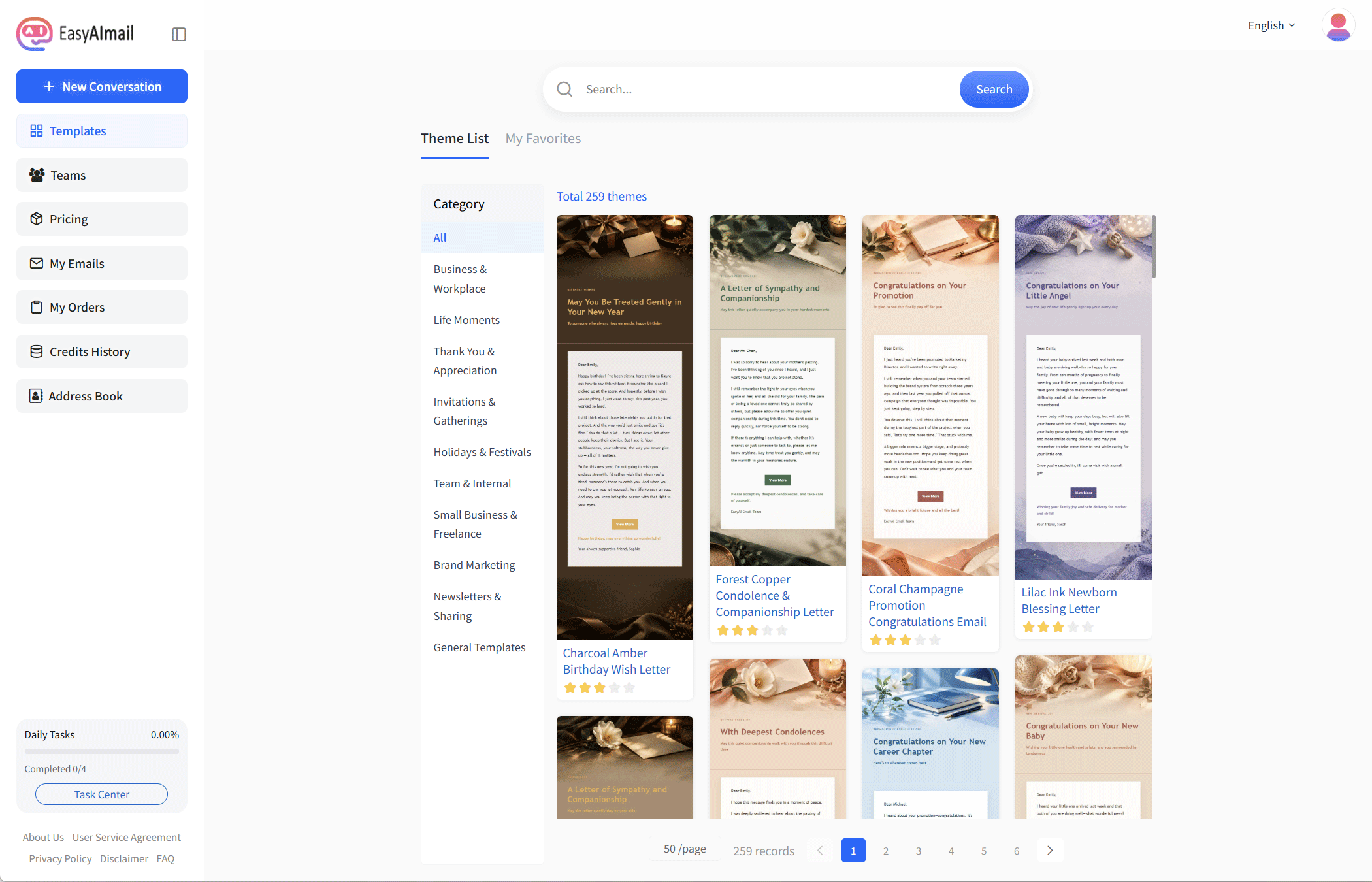
Find by occasion first, then judge by style
The left column holds the categories, organised by occasion:
Business & Workplace · Life Moments · Thank You & Appreciation · Invitations & Gatherings · Holidays & Festivals · Team & Internal · Small Business & Freelance · Brand Marketing · Newsletters & Sharing · General Templates
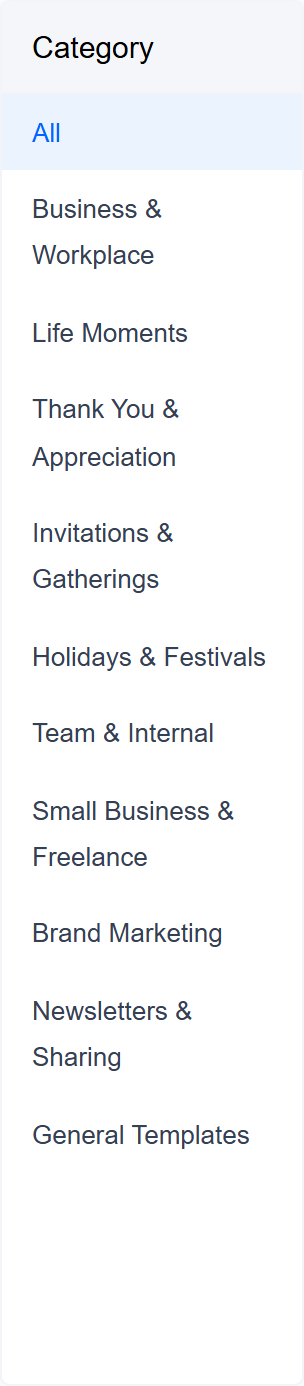
Narrow it down to a few dozen first, then talk about looks. Scrolling through a hundred-plus templates from the top gets you nowhere — you'll run out of patience around number forty.
Categories keep filling up as the library grows, and new occasions get added. That list is what exists today.
Two tabs at the top

Theme List is everything. My Favorites is what you've saved — sign-in required.
Favouriting happens on a template's detail page and below any generated email. Save the ones that work; re-searching every time is the expensive path.
What a template page actually offers
Click any card:
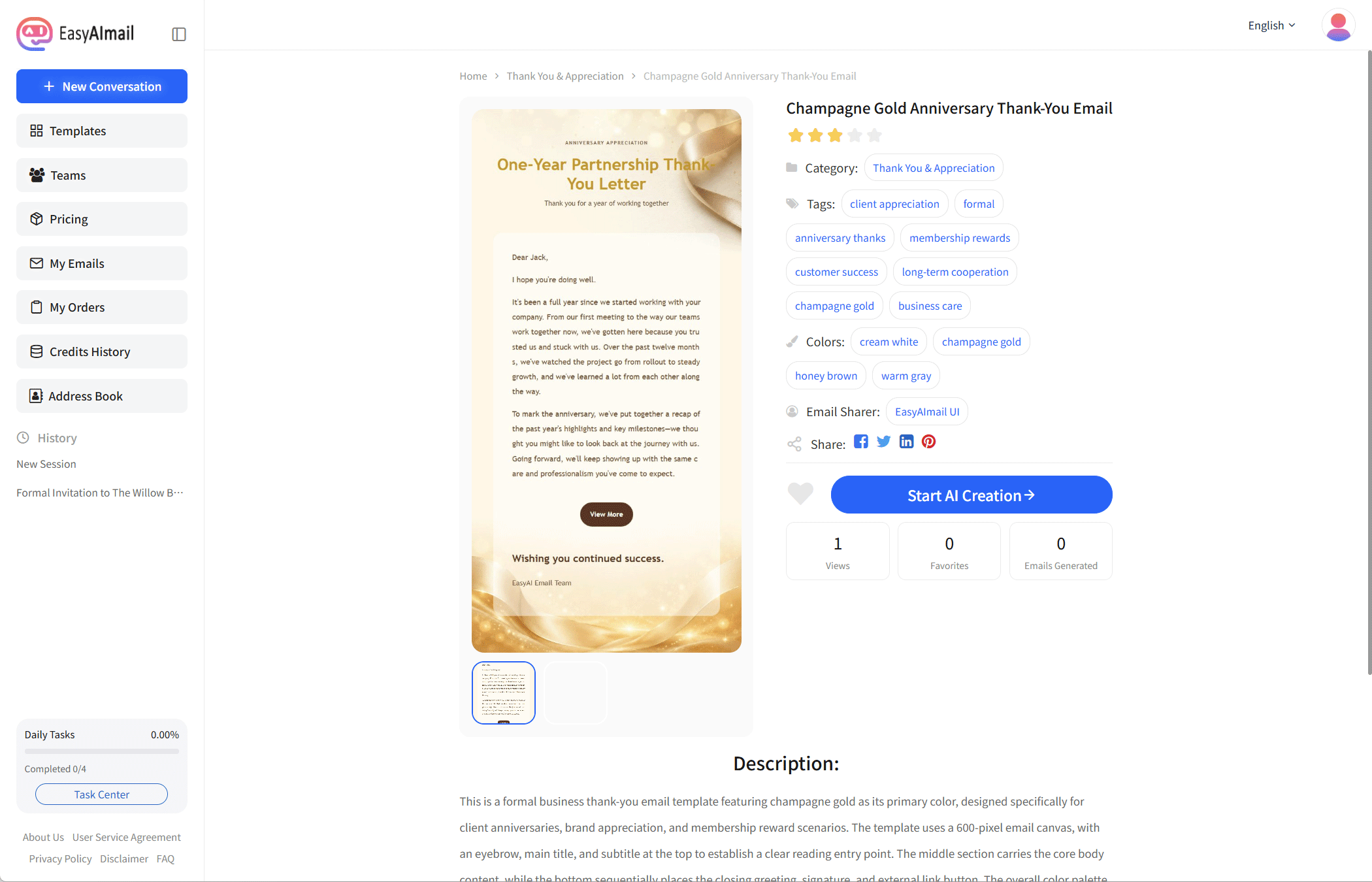
Three things worth knowing:
Create with AI using this template. The most-used route — you like the design, the copy still needs writing. Once inside, the AI asks for the information it needs and produces a finished email in that layout.
The sample email. Every detail page previews the template with real content. If you're unsure whether it suits your occasion, look at the sample first.
Favorite. Sends it to My Favorites.
Starting a new email from My Emails
There's another route besides going through the Template Center: in My Emails, find an email you sent before and click Create with AI using this template.
Know what it actually does — it isn't re-laying-out that old email. It opens a brand-new conversation using the template that email was built on. Once inside, you describe the new email from scratch; the original is untouched.
So the use case is "that layout worked well last time, let's do another one in the same style", not "tweak the old one". To change the old one, go back into its conversation and just say so.
The library keeps growing. If an occasion you need isn't there, say so via Settings → Feedback — those requests get prioritised.
Ready to put this guide into practice?
Start with one sentence about your recipient, purpose, and key points. EasyAImail guides you through the rest.