
How to brief the AI so it gets it right
Same tool, two very different experiences: one person gets a usable draft on the first try, another spends eight rounds fixing it.
Same tool, two very different experiences: one person gets a usable draft on the first try, another spends eight rounds fixing it. The difference isn't familiarity with the interface. It's whether the necessary information actually made it into the prompt.
The AI can't read your mind. It knows exactly what you typed and guesses the rest — and every wrong guess costs you another round.
Five things, and the whole thing usually works
| Say this | Not this | |
|---|---|---|
| Who it's for | A client, a manager, a colleague, an elder relative, a friend | "the recipient" |
| The occasion | Post-meeting thanks, chasing a deadline, an apology, an invitation, a holiday | "an email" |
| What to say | Two or three points, in your own words | Let the AI invent a topic |
| The tone | Formal, polite, warm — or "not too corporate" | Nothing |
| Hard facts | Dates, places, amounts, names, company names | Skipping them |
The first four shape how it writes. The fifth decides whether it writes something true — and it can't invent those.
Three examples, side by side
Post-meeting thanks
❌ Write me a thank-you email.
✅ I met Mr. Zhang from Company A last Friday and we settled next quarter's cooperation. I want a post-meeting thank-you note — polite without being obsequious, and it should confirm that we'll send the proposal first, by end of this week.
An invitation
❌ Write an invitation.
✅ Our book club is hosting a discussion of a book at Sanlian Bookstore next Wednesday at 7pm. I want to invite the regular members. Keep the tone light, mention we'll have tea and snacks, and give Tuesday as the RSVP deadline.
An apology
❌ Write an apology email.
✅ The proposal for our client Mr. Li is two days late. Say why (we were waiting on material only he could confirm), then give the new delivery date — Thursday afternoon, no later. Sincere, but don't over-apologise.
Notice the pattern: the bad versions describe a genre, the good versions describe what happened. That's the shift that matters.
How it finds the right layout
You don't have to decide on a template before you start.
Once your brief is clear, the AI works out what this email actually is — the occasion, the relationship, the tone — then picks a few suitable layouts from the library and offers them to you. Each one has a Details link showing a sample email; pick one, hit Use, and your content goes into that layout.
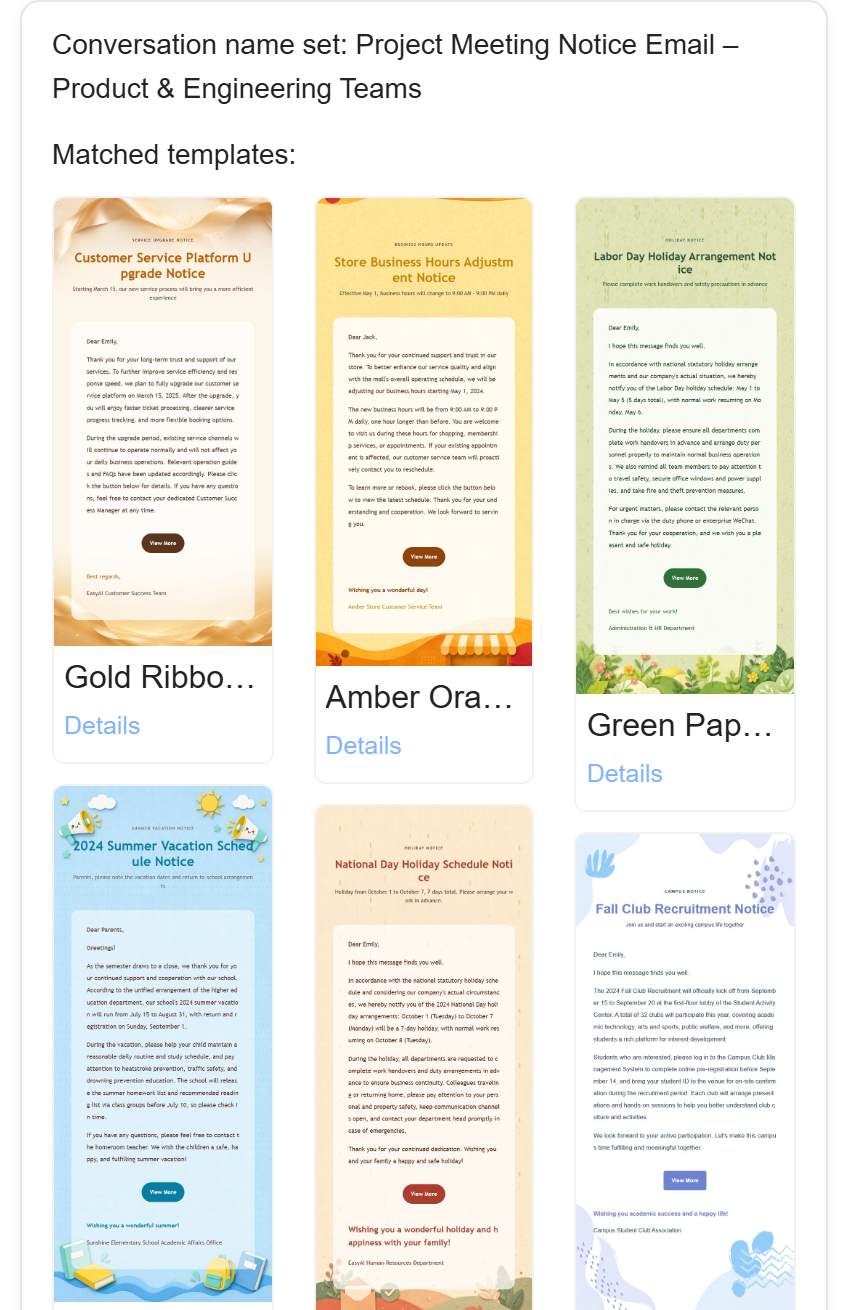
If you already know what you want, it's quicker to go the other way round: choose a template in the Template Center first, come in through Create with AI using this template, and supply the content knowing the layout is settled.
There's also precise revision: the email already exists and you want one spot changed. Say exactly where, and nothing else gets touched.
Say it all at once if you can
One clear brief beats several rounds.
How well you brief it directly affects how fast you burn through credits — creating an email costs credits, and so does every revision. Five rounds of nudging adds up far faster than getting it right once.
The test is simple: if you can picture roughly what it should look like, say it all at once.
There's exactly one reason to go step by step — you don't yet know what you want, and you need to see something before you can react to it. In that case, let it produce a rough first version. The point of that draft isn't the draft; it's flushing your requirements out into the open.
If you've already chosen a template, change how you talk
Once a template is selected, the input placeholder drops from "Please enter your email request, e.g., I want to send an email about ***" to just "Please enter your email request."
Small wording change, different job. You're no longer ordering — you're supplying. The design is settled. Your part is feeding in the substance, not describing what kind of email you'd like to see.
Ready to put this guide into practice?
Start with one sentence about your recipient, purpose, and key points. EasyAImail guides you through the rest.