
Sending: four choices, not one
There's a naming trap here, so let's clear it up before anything else.
There's a naming trap here, so let's clear it up before anything else.
"Send Method" in the popup means when to send, not whose mailbox to send from. Those are two separate questions, and each has two answers.
| Send Now | Scheduled Send | |
|---|---|---|
| Platform sending | Goes out through the platform channel immediately | Goes out from the platform queue at the chosen time |
| Your sender SMTP | Goes out from your mailbox immediately | Goes out from your mailbox at the chosen time |
Decide in that order: the time first, then the mailbox.
The time
Open the Send Email window and Send Method is the first field — Send Now or Scheduled Send.

Pick Scheduled Send and a Sending Time field appears below it.
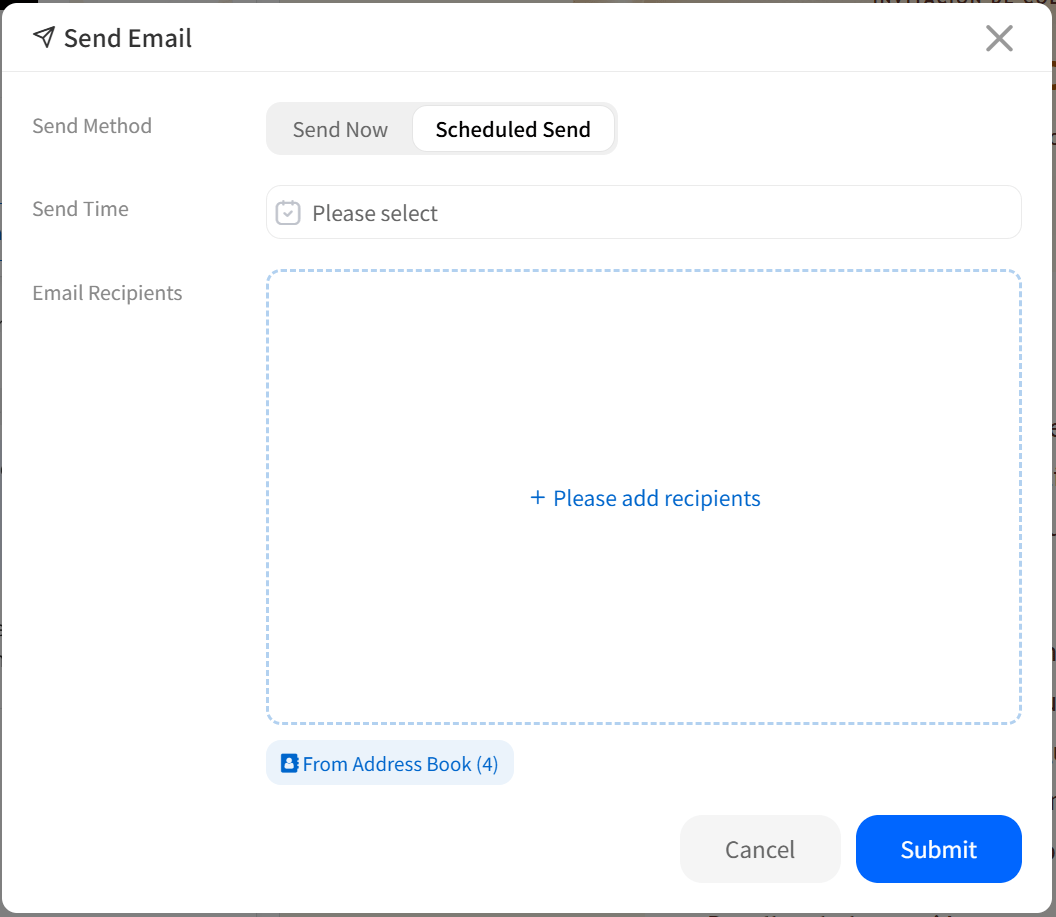
Two things to know:
It isn't second-accurate. The interface says so itself: "After choosing scheduled send, the email enters the sending queue and delivery may be slightly delayed." Don't schedule something for one minute before a deadline.
You can change your mind. The conversation shows a countdown — "Time left until sending: Xd Xh Xm Xs" — and until it runs out, you can still adjust.
When scheduling earns its keep:
- Time zones. You want it to land during the recipient's working hours, not at 3am their time.
- Holiday greetings. Nobody should be able to tell from the timestamp that you batch-sent it.
- Things you remembered early. Queue it now instead of relying on your memory next week.
The mailbox
Leave everything unset and the platform sends on your behalf, with a copy to your sending address. That's the default, and it works.
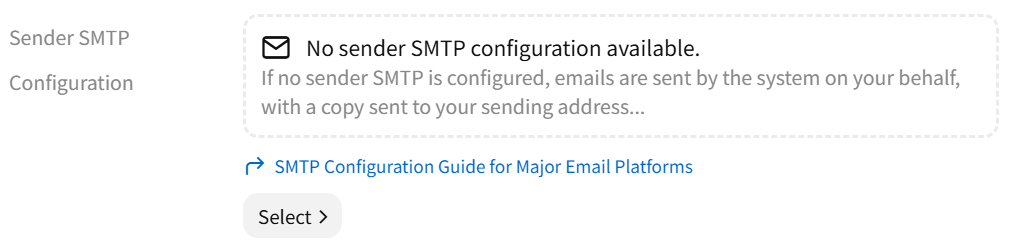
Configure your own SMTP (paid plans) and the recipient sees your address as the sender. For clients and business correspondence, that's usually not optional.
The default sender is the address you registered with — registration already put you through email verification. Adding more sender addresses is possible, but each one goes through verification too.
Which to pick:
| Situation | Recommendation |
|---|---|
| Testing, or writing to people you know | Leave it unset; platform sending is fine |
| Clients, formal correspondence | Configure your own SMTP so the sender is your address |
| Company policy requires a domain address | SMTP is the only option |
Setup steps differ per provider, and almost none of them accept your login password — you'll need to generate an authorization code or an app-specific password. See SMTP Configuration Guide for Major Email Platforms for the steps per provider.
Recipients
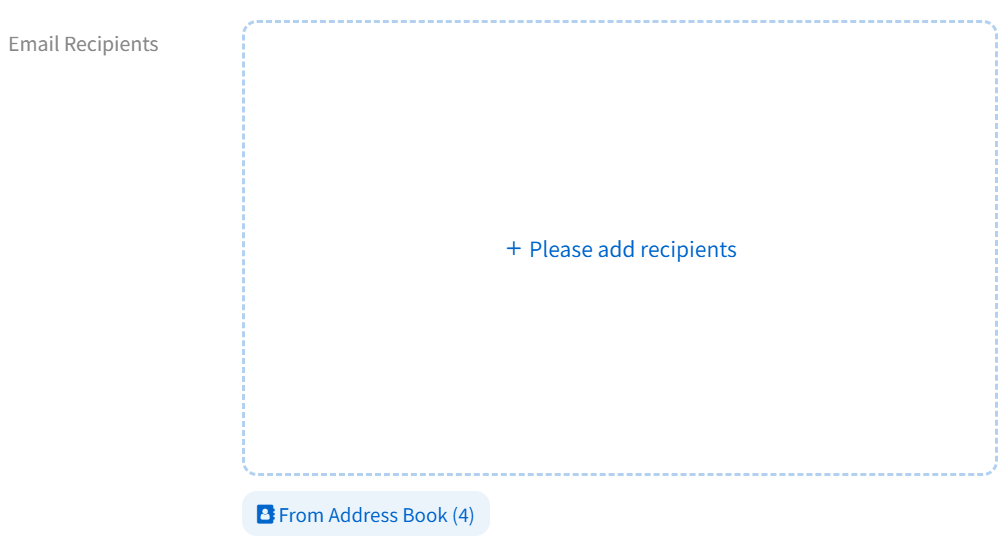
Type them in one at a time, or use Choose from Address Book (N) to import a batch. The N is how many contacts you currently have.
After you submit
Go and look at the copy in your own inbox. That's the real rendering — the preview panel and an actual mail client differ, sometimes visibly.
One thing to keep in mind: once an email is sent it can't be sent again. So check the subject, the body, and the recipients before you submit.
Sending to a group? View Send Log shows every recipient's status: Pending / Sent / Failed. The email as a whole reads Pending / Sent / Failed / Partially Failed.
Don't panic at "Partially Failed" — the log names the address that didn't go through, and nine times out of ten it's a typo.
Ready to put this guide into practice?
Start with one sentence about your recipient, purpose, and key points. EasyAImail guides you through the rest.