
How to Revise and Insert a Gmail Draft With the EasyAImail Browser Plugin
A generated email is not the end of the job. It is the point where a good draft becomes easy to inspect.
How to Revise and Insert a Gmail Draft With the EasyAImail Browser Plugin
A generated email is not the end of the job. It is the point where a good draft becomes easy to inspect. The safest workflow is simple: review the HTML email in EasyAImail, ask for any change that would make it more accurate or more like you, then insert it into Gmail as a draft. Do not treat the insert button as a send button.
Review the preview before you move it to Gmail
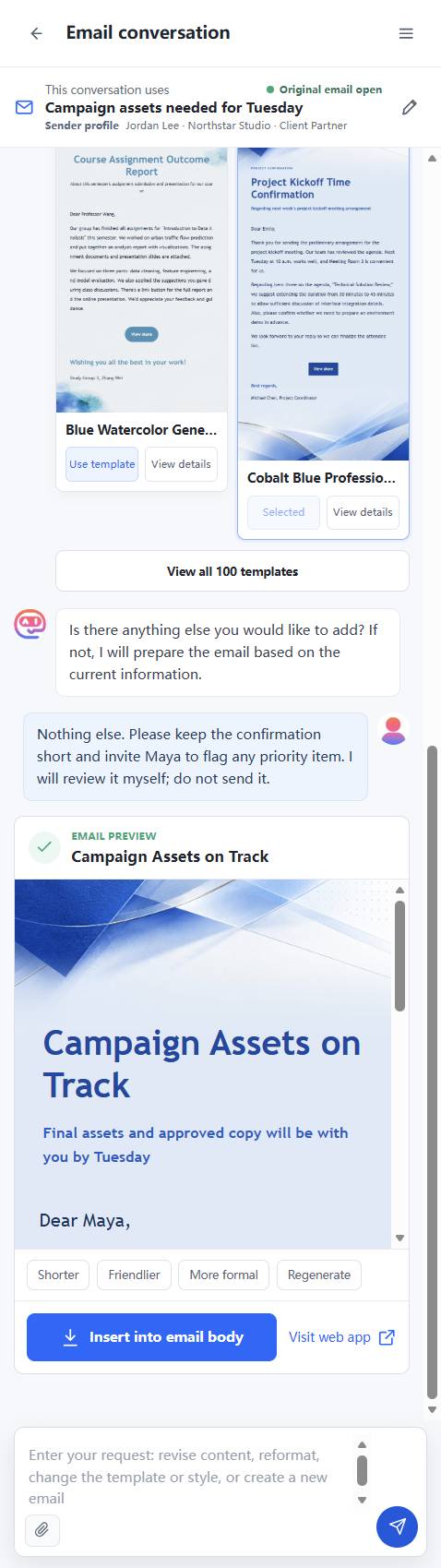
The EasyAImail side panel shows the complete HTML email, including its subject, visual layout, salutation, body, and signature. Read it as the recipient would, not only as text generated from your instruction.
Look for the details that cause the most avoidable problems:
- the recipient's name and form of address;
- promised dates, delivery methods, or next steps;
- duplicated or overly formal sign-offs;
- attachments and links that need your confirmation;
- a tone that is too cold, too casual, or too expansive for the relationship.
Use a quick refinement or describe the real change
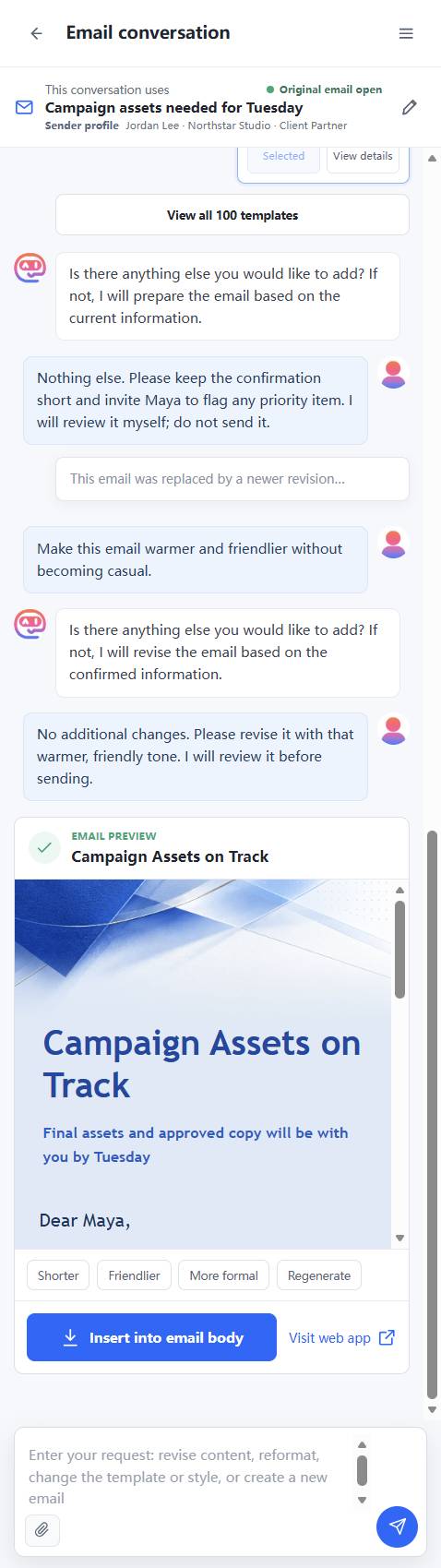
EasyAImail offers quick directions such as Shorter, Friendlier, and More formal. They are useful when the change is exactly what you mean. You can also type a more precise request, such as:
> Keep the delivery date, but make the opening warmer and remove the repeated closing.
The extension may ask whether there is anything else to add before creating the new version. Answer that question directly. This gives you one more chance to keep facts correct instead of relying on a generic rewrite.
Insert into the active Gmail reply or draft
When the preview is ready, choose Insert into email body. EasyAImail places the approved version in Gmail's active editor. If that editor already has writing in it, Gmail and the extension can show a choice about keeping existing content or replacing it. Read that choice carefully; it changes the draft, not the message already received.
Insertion does not send the email. It gives you a Gmail draft to inspect with Gmail's usual controls still available.
Make the final check in Gmail
After insertion, look at the actual Gmail editor. Confirm the reply sits in the right thread and that the HTML layout is readable there. Check the recipient, subject, body, attachments, and any unexpected duplicate line before you take any sending action.
That last check is not redundant. A template can include a closing, and a sender profile can add a signature. Seeing the final Gmail draft is how you catch a repeated sign-off or a detail that did not belong in the message.
A practical review routine
- Confirm the open Gmail thread is correct.
- Read the preview for facts and tone.
- Use a preset refinement or give a specific change request.
- Check the new preview again.
- Insert into Gmail only when you are ready to inspect the draft.
- Review the Gmail draft one final time and decide whether to send.
EasyAImail helps you generate and revise an email conversationally. The final review and sending decision remain yours.
FAQ
Does EasyAImail send the email after I insert it?
No. It inserts the generated HTML into the active Gmail draft or reply editor. You still control Gmail's Send button.
What should I do if the preview has a duplicated closing or a wrong detail?
Ask for a specific revision before inserting it, then inspect the replacement preview. After insertion, review the Gmail draft again before sending.
Can I keep part of an existing draft?
When the active editor already contains content, review the insertion choice carefully. Keep or replace content only after checking which version you want in the Gmail draft.
Want to use EasyAImail inside Gmail or Outlook?
The browser extension works beside your inbox to understand an email, recommend templates, draft or review a reply, and insert it only after you confirm. See supported browsers and installation options.