
How to Reply to a Gmail Email With the EasyAImail Browser Plugin
When someone opens the EasyAImail browser plugin from a blank browser tab, it has no email to work from. That is expected.
How to Reply to a Gmail Email With the EasyAImail Browser Plugin
When someone opens the EasyAImail browser plugin from a blank browser tab, it has no email to work from. That is expected. For a reply, open the actual Gmail message first, then open EasyAImail in the side panel beside it. The plugin can then use the open email as context and show what it found before you decide what to say.
This guide walks through a reply to a client who needs campaign assets by Tuesday. The important part is not the exact wording. It is keeping the real message, your decision, and the final draft in the same review loop.
What the browser plugin uses
EasyAImail works from the Gmail message or draft you have opened beside the side panel. It is not a background scanner for the rest of your inbox. When you actively use an AI feature, the relevant current email or draft content is sent to EasyAImail and its configured AI service so it can generate the requested help.
Start next to the email you are answering
Open the message in Gmail, not only the inbox or a search result. Then open the EasyAImail side panel. You should see the email subject, a summary, deadlines or missing information, and suggested actions.
An opened email tells EasyAImail what happened. It does not decide your reply for you. In this example, the sender asked for final campaign assets and approved copy. The suggested action was to confirm delivery. You could instead ask for asset details, or type a different instruction in your own words.
Choose the reply direction, then inspect templates
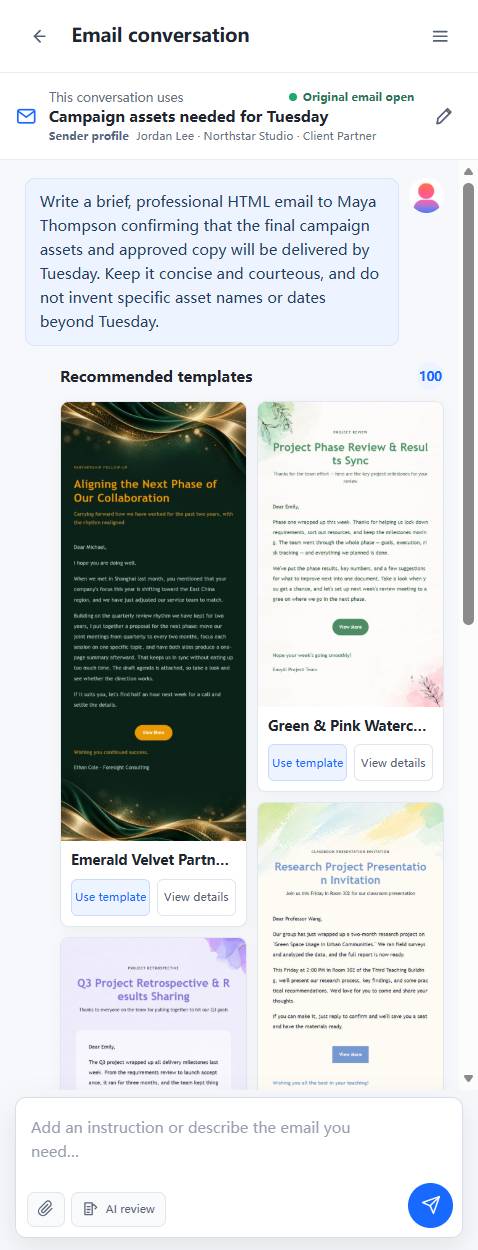
After you choose or describe the reply direction, EasyAImail recommends templates. This is a shortlist, not an automatic design decision. A message to a long-term client may call for a more restrained layout than a team update or a friendly follow-up.
For this test, we opened the details for the Cobalt Blue Professional Concise Reply Email Template. Its visible tags included professional reply, workplace communication, concise expression, and agreement confirmation. Its cobalt blue, porcelain white, and silver palette also fit a brief client confirmation better than the more decorative options in the list.
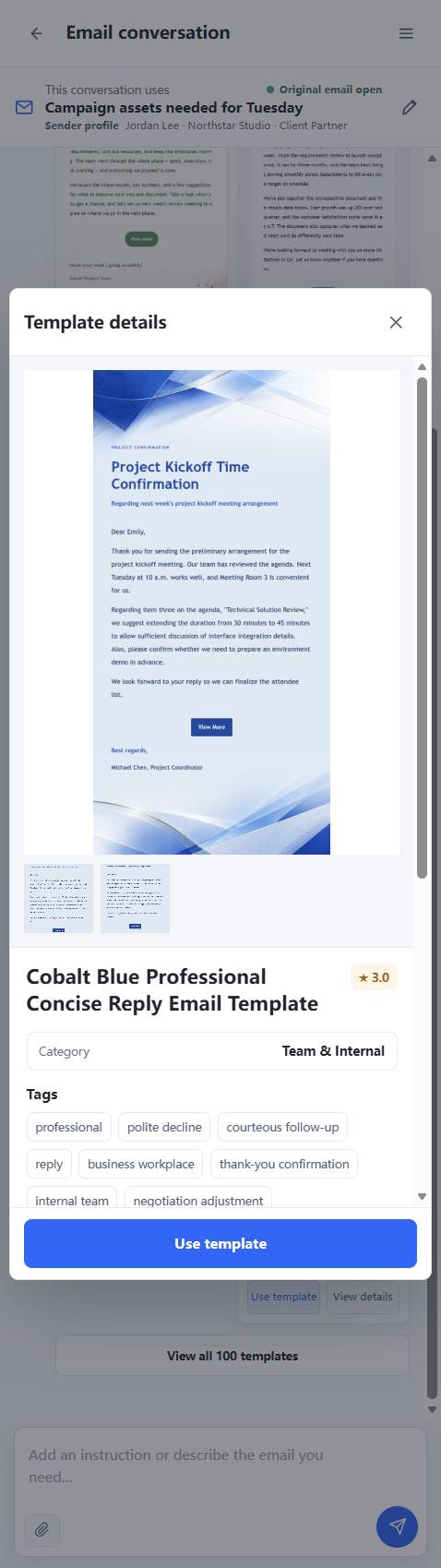
Choose the template yourself after checking its name, tags, colors, description, and preview. EasyAImail will use the selected template only after you make that choice.
Answer only the missing detail
Once a template is selected, the extension asks for the information it still needs. You do not need to paste a long prompt. In our example, the email already gave the recipient name and the Tuesday deadline. The useful addition was simply how the assets would be delivered and whether Maya should flag a priority item.
Short answers are often better here. They keep the draft grounded in facts you can verify:
- who the recipient is and how to address them;
- what you are confirming, declining, requesting, or clarifying;
- any real date, delivery method, or next step;
- the tone that fits the relationship.
Review the generated HTML email
EasyAImail then builds an HTML email in the side panel. Check the subject, greeting, concrete promise, dates, links, signature, and visual layout before it goes anywhere near Send. You can ask for a shorter, friendlier, or more formal version, or type a more specific change.
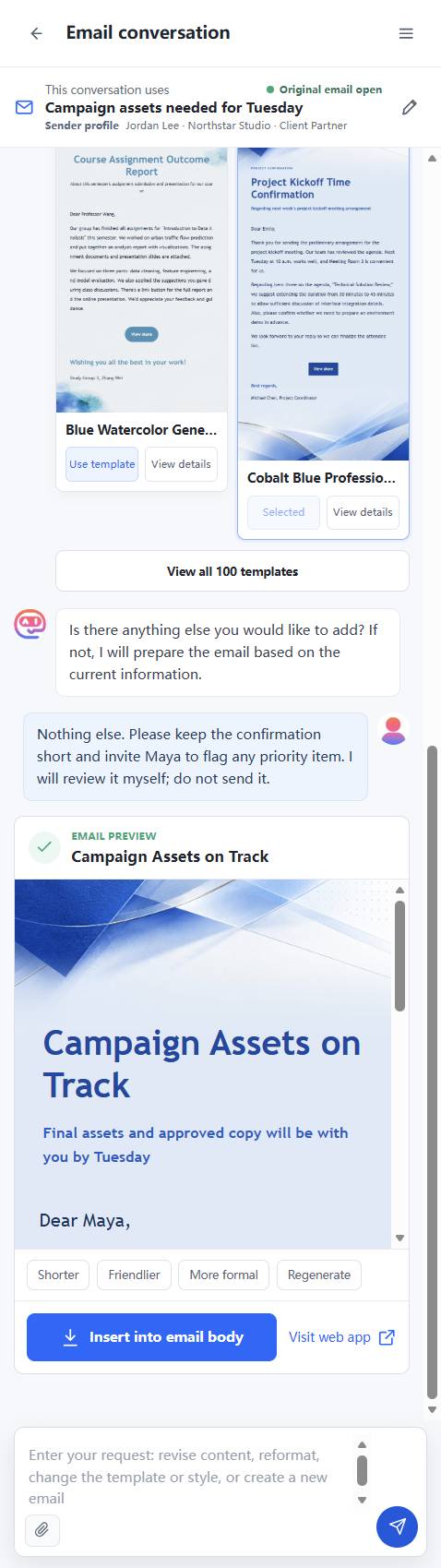
The extension can place the reviewed result into the active Gmail reply editor. That is still a draft. You remain responsible for the facts, recipient, attachments, and final sending decision.
Before you send
- Is the Gmail message you opened the one you actually mean to answer?
- Does the confirmation name a real date or delivery method?
- Did you choose the template rather than accepting a visual style by accident?
- Does the greeting and signature fit the recipient?
- Have you reviewed the Gmail draft after insertion?
EasyAImail helps turn an open message and a small decision into a presentable reply. It does not send the email on its own.
FAQ
Why does the browser plugin not recognize my email when I open it separately?
For a reply, the browser plugin needs an open Gmail message or thread beside the side panel. A standalone plugin tab does not provide that current-message context.
Can I write my own reply instruction instead of using a suggested action?
Yes. Suggested actions are shortcuts based on the open email. You can type a different reply goal whenever it better reflects what you want to say.
Does inserting the result send the Gmail email?
No. Inserting places the result in Gmail's active draft or reply editor. Review it there and decide yourself whether to send it.
Want to use EasyAImail inside Gmail or Outlook?
The browser extension works beside your inbox to understand an email, recommend templates, draft or review a reply, and insert it only after you confirm. See supported browsers and installation options.