
How to Choose an Email Template in the EasyAImail Browser Plugin for Gmail
The template recommendation is where many email tools quietly make the wrong tradeoff.
How to Choose an Email Template in the EasyAImail Browser Plugin for Gmail
The template recommendation is where many email tools quietly make the wrong tradeoff. A system can identify that you are replying to a client, but it cannot know whether you prefer a restrained business layout, a warmer design, or something more direct. EasyAImail recommends templates; it leaves the final selection with you.
That distinction matters when the email represents a real relationship. A polished visual does not automatically make a message appropriate.
Begin with an open Gmail message and a reply decision
For a reply, open the Gmail message first and launch EasyAImail in the side panel. The extension summarizes the current email and offers useful reply directions. Choose one of those actions or describe your own intention.
Only after the reply direction is clear does EasyAImail recommend templates.
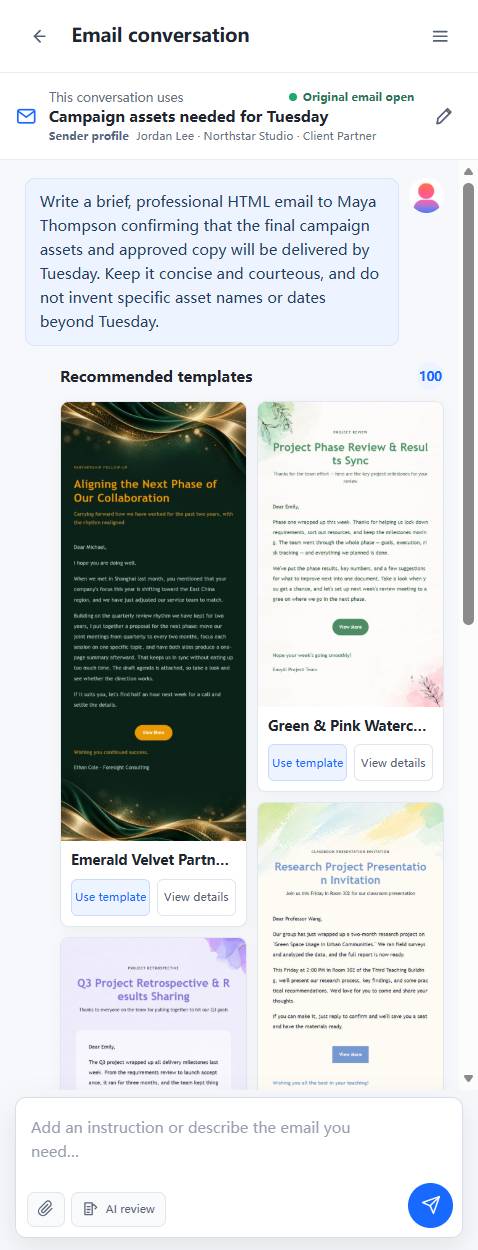
Do not choose by color alone
Color is part of the decision, but it should not lead it. Start with the relationship and purpose:
- A delivery confirmation to a client needs clarity, calmness, and a visible next step.
- A thank-you to a mentor can carry more warmth and personal space.
- An internal project update may need a scannable, concise structure.
- A holiday or birthday message can support a more expressive design.
Then inspect the details. In our English-interface test, the Cobalt Blue Professional Concise Reply Email Template had tags for professional reply, workplace communication, concise expression, and agreement confirmation. Its description also described a restrained business style. Those are stronger reasons to choose it for a client delivery confirmation than its color alone.
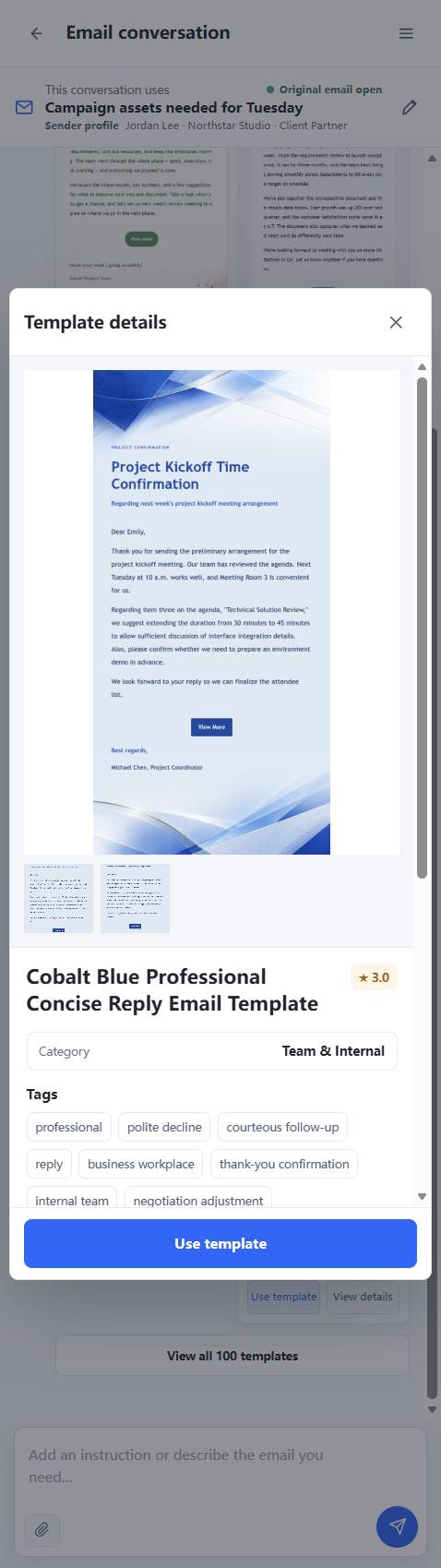
What to check in template details
Open the details for any candidate you are considering. Check five things:
- Name: Does it describe the right kind of conversation?
- Tags: Do they fit the relationship and purpose, not just a broad category?
- Colors and visual rhythm: Does the design feel appropriate for the recipient?
- Description: Does it support the tone and content structure you need?
- Preview: Can you picture the real email in this layout on a desktop and a phone?
If the recommended results feel wrong, do not force a match. View more templates or use a different direction in the conversation. An attractive template with poor semantic fit will make the email less believable, not more.
Select, then provide the missing facts
When you select a template, EasyAImail asks for only the information still missing. This keeps the choice in the right order: first intent, then recommendation, then your template decision, then the facts needed to draft the email.
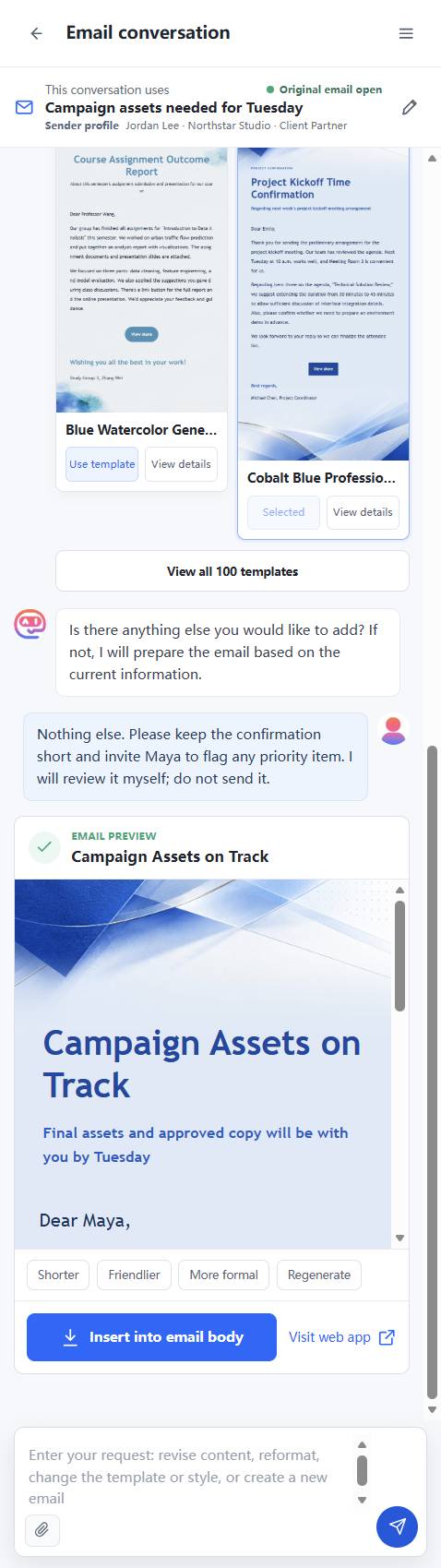
You can still revise the content, tone, or template after previewing the HTML email. The selected template is a starting point, not a commitment you cannot change.
A quick decision check
Before selecting a template, ask:
- Would the recipient expect this level of formality and visual energy?
- Does the structure help the reader find the purpose quickly?
- Does the visual style fit a client, colleague, friend, or group?
- Would I be comfortable seeing this design under my own name?
EasyAImail narrows a large template library into useful options. You decide which one speaks in your voice.
FAQ
Does EasyAImail automatically apply the top recommended template?
No. It recommends templates and waits for you to select one.
Can I view template details before I choose?
Yes. Use the detail view to inspect the name, tags, colors, description, and preview before selecting it.
Can I change my mind after the email is generated?
Yes. You can request content changes, a different tone, or a different template before inserting the result into Gmail.
Want to use EasyAImail inside Gmail or Outlook?
The browser extension works beside your inbox to understand an email, recommend templates, draft or review a reply, and insert it only after you confirm. See supported browsers and installation options.