
Clear Transactional Reply · Lilac Tissue Paper
A clear transactional reply template built for browser-extension email replies, suited to small-business correspondence, freelancer collaboration, client detail confirmation, survey feedback and service notes. The tone is plain, practical, friendly and dependable, tied to no specific event, so it carries confirmations, polite declines, rescheduling, thank-you acknowledgements, extra information, clarification requests and courteous follow-ups. The body answers the key points first, then sets out confirmed items or a short checklist, then states the next step and leaves room for a reply. Paragraphs, lists, quote blocks, dividers and dynamic links are all supported. Visually it uses lilac, smoky violet, ivory and ink blue with a tissue-paper texture, pressed botanical accents and quiet editorial typesetting; a low-contrast vertically repeating paper grain fills the middle so short replies stay refined and long ones do not stretch. Mobile-first, with a desktop media query that enlarges type, spacing and up to two side-by-side link buttons.
This template was made for EasyAImail with AI assistance and was not copied from a third-party template library. No separate template license is required, and it may be used in commercial email under our Terms of Service.
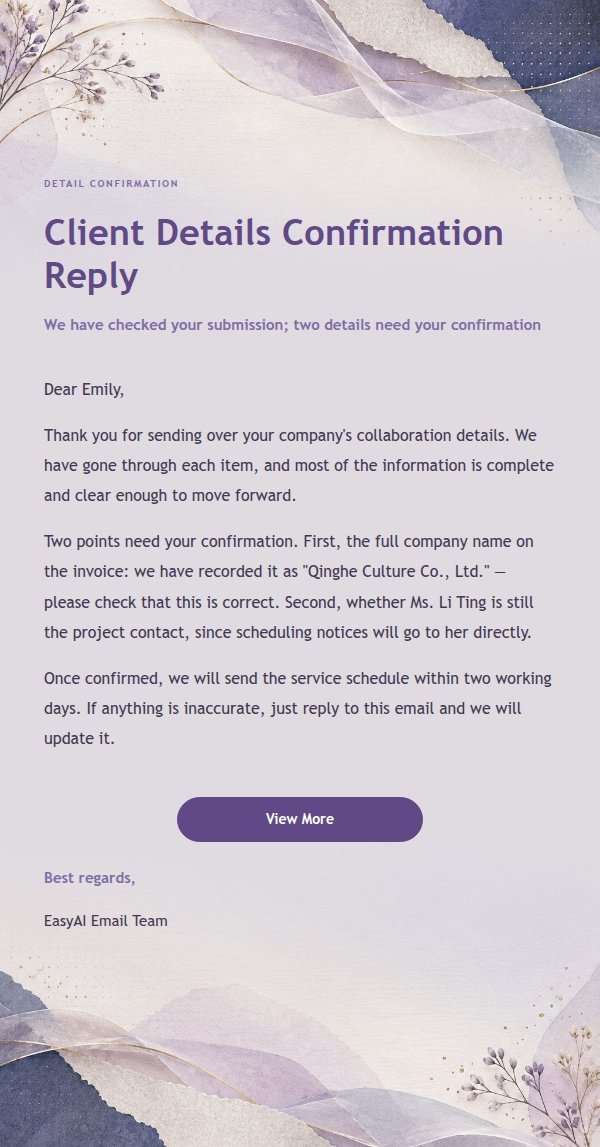
Email previews
2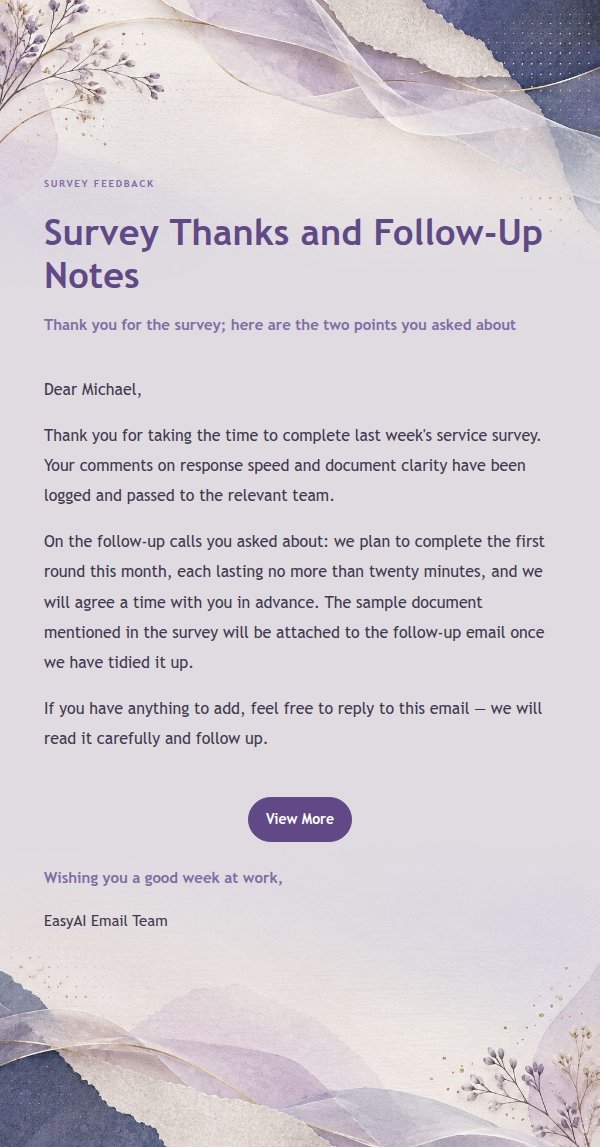
Use this template in three steps
No downloads and no HTML editing. After you sign in, this template opens automatically; just tell AI who the email is for and why you are writing.
- 1
Open this template
Click the button and sign in or create a free account. The writing screen opens with this template already selected.
- 2
Tell AI the essentials
In your own words, share the recipient, purpose, and tone. If dates, locations, links, or other details are missing, AI asks for them.
- 3
Preview, revise, and send
Review the complete email and ask AI for changes. Then enter the recipient and choose to send now or schedule it.
Version history
- v1.0First Created